WooCommerce can collect sales tax for you, but it requires manual configuration and falls short when it comes to full tax compliance. Tools and plugins like Numeral can integrate with your WooCommerce store to automate the entire process.



While WooCommerce's customizable storefront makes selling online simple, a 2018 court ruling in South Dakota v. Wayfair introduced challenges to the ecommerce world by allowing states to require sellers to collect sales tax even if the company had no physical location in the state.
If you run a WooCommerce store with $100,000 or more in annual revenue, you're likely to owe sales tax on e-commerce sales in multiple states in the post-Wayfair era, as well as GST or VAT if you sell outside the U.S. Unfortunately, WooCommerce can't help you fulfill your responsibilities in these locations.
Failure to follow tax rules can result in steep penalties of 10% to 25% of back tax plus interest. Audits are common, so compliance is essential.
While WooCommerce can collect sales tax, it does not handle remittance and requires extensive configuring. Solutions like Numeral integrate seamlessly into WooCommerce, ensuring compliance with much less work.
This guide will explain the details of how WooCommerce handles sales tax natively, what the gaps are, and how to best manage sales tax compliance through the WooCommerce platform.
When you sell products online using certain platforms like Amazon or Etsy, the platform is classified as a marketplace facilitator because it plays an integral role in the transaction. Marketplace facilitators collect the correct amount of tax on your behalf and remit it for you.
WooCommerce, however, is not a marketplace facilitator.
WooCommerce can collect sales tax for you, but manual configuration may be required, including setting tax classes for products and selecting whether to calculate tax based on the shipping address, billing address, or store address.
Unfortunately, tax collection is also a small part of your compliance obligations. Your company must complete other tasks, including tracking when you establish nexus based on sales volume and number of transactions, registering when required, and filing and remitting tax.
You must fill the gaps left by WooCommerce to avoid violating tax laws and putting your company at risk of owing back taxes and penalties.
The absence of nexus tracking is one of the biggest gaps in the tax tools offered by WooCommerce. That's because, when Wayfair changed the rules for when states could require companies to collect sales tax, it did so by expanding when companies can establish nexus.
This fundamentally changed the rules for when a state could require a business to collect sales tax, as establishing nexus triggers a requirement to register to collect tax, collect the correct amount, file sales tax forms, and remit tax payments regularly.
Sales tax nexus means a company has enough connections with a state that the state is entitled to require the business to register to collect sales tax.
Traditionally, companies only established nexus by having a physical presence. This could include a store, a warehouse, or local employees. In an effort to collect more revenue, some states did have a broad definition of nexus, including things like selling products at trade shows.
Still, the physical nexus requirement was limiting as ecommerce sales grew. States began pushing the envelope to capture more revenue, and eventually, the court heard a challenge to the physical nexus rule in Wayfair and established a new framework called economic nexus.
The court allowed states to impose sales tax obligations on sellers with a major local economic presence, even without a physical location. This meant a business that sold to many local customers was deemed to have enough connections that it had to follow local sales tax rules.
Under the Wayfair framework, states had to pass laws that established reasonable thresholds for establishing economic nexus. Each state sets its own rules, but there are some common trends. For example, in many locations, a business establishes economic nexus if:
Ecommerce companies now must track sales and transaction volume in all states where they operate to see if they cross the thresholds. Failure to register when required based on volume and collect sales tax when selling online can result in back taxes, penalties of 10% to 25% of unpaid taxes, interest, and audit exposure.
WooCommerce will not track whether you have crossed the thresholds. Your company must manually monitor the key metrics and respond quickly when nexus is established to register and begin collecting and remitting the required tax.
While WooCommerce will not help fulfill all compliance requirements, it will collect tax due—but only if you enable this option and configure your tax settings.
Here are the steps to setting up sales tax collecting in WooCommerce:
WooCommerce will not collect sales tax by default unless you enable taxes. You can do so by taking the following steps:
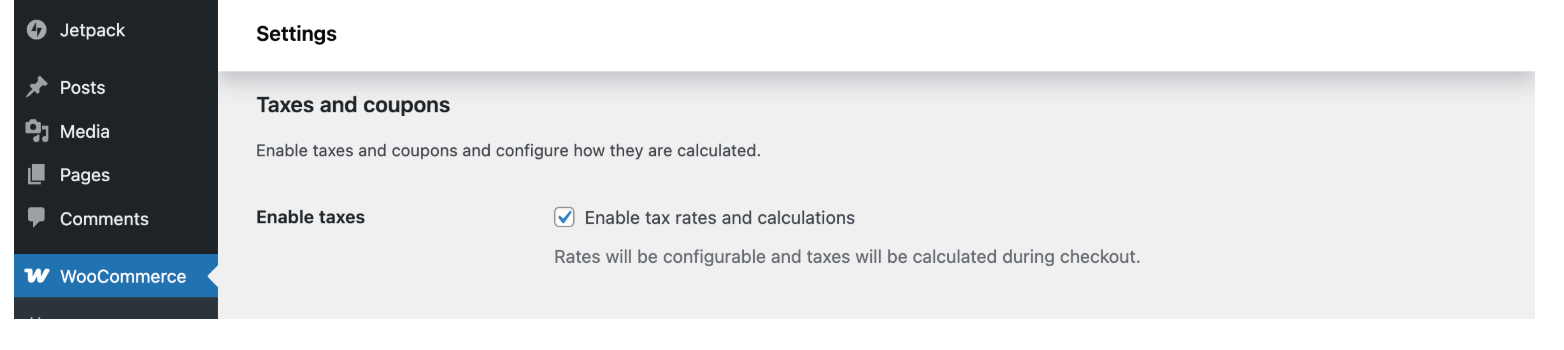
The next step is to configure your tax options.
There are many variables when collecting sales tax, and WooCommerce requires you to understand which rules apply to the products or services you're selling so you can correctly configure tax collection.
You'll complete this process by navigating to WooCommerce > Settings > Tax. The options you must configure include:
While WooCommerce has a guide to common tax scenarios, you must largely determine the correct configurations on your own.
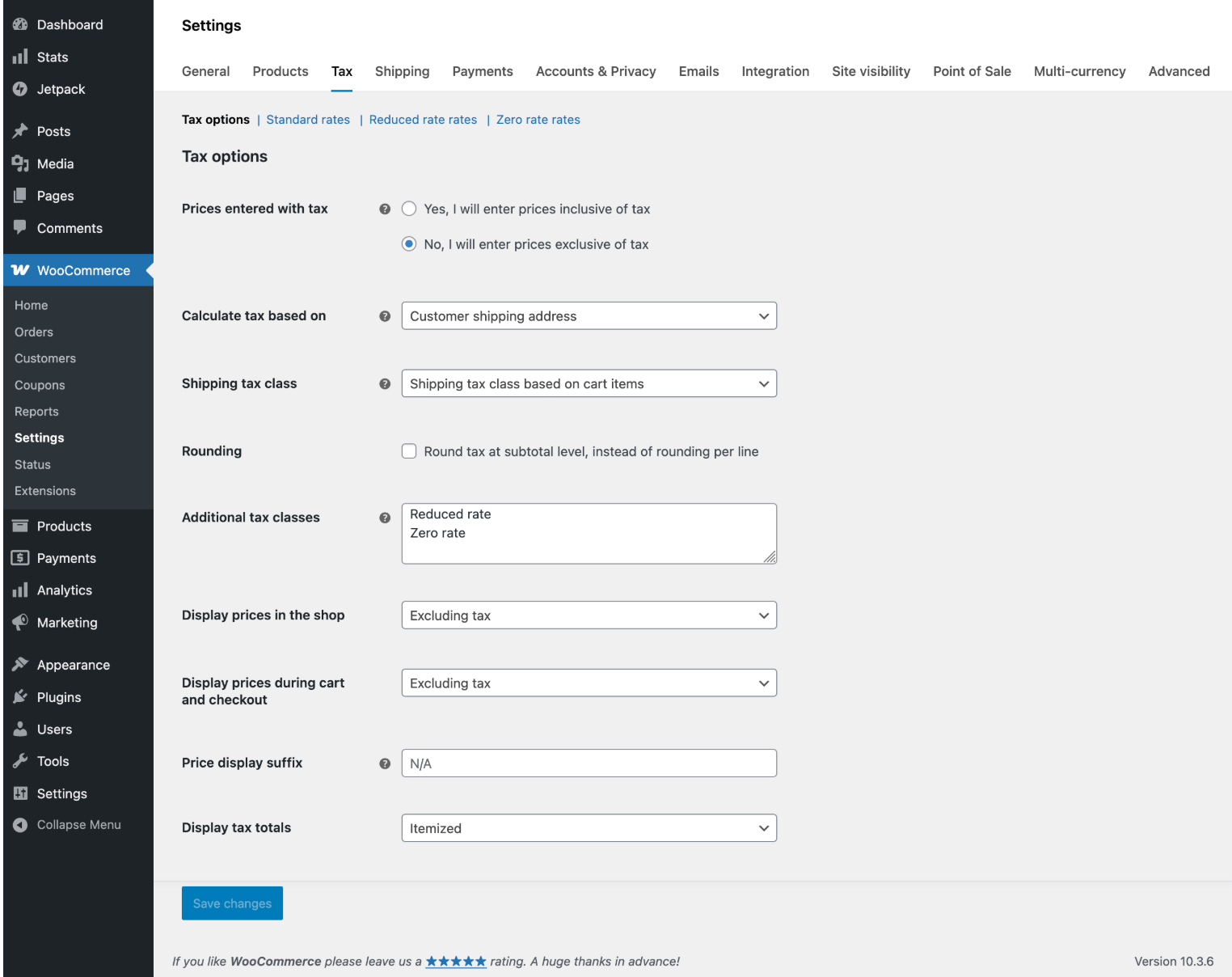
The next step is to configure the tax rates for your items.
Rates vary depending not just on location, but also by product. Some items, such as food and basic clothing, are often non-taxable, while things like digital products or SaaS are taxable in some states but not others.
Tax classes are found in the Tax Settings screen in subtabs along the top. Default settings include standard, reduced, or zero, but there are more tax classes in some locations. You may add more classes by typing the new class into the Additional tax classes box.
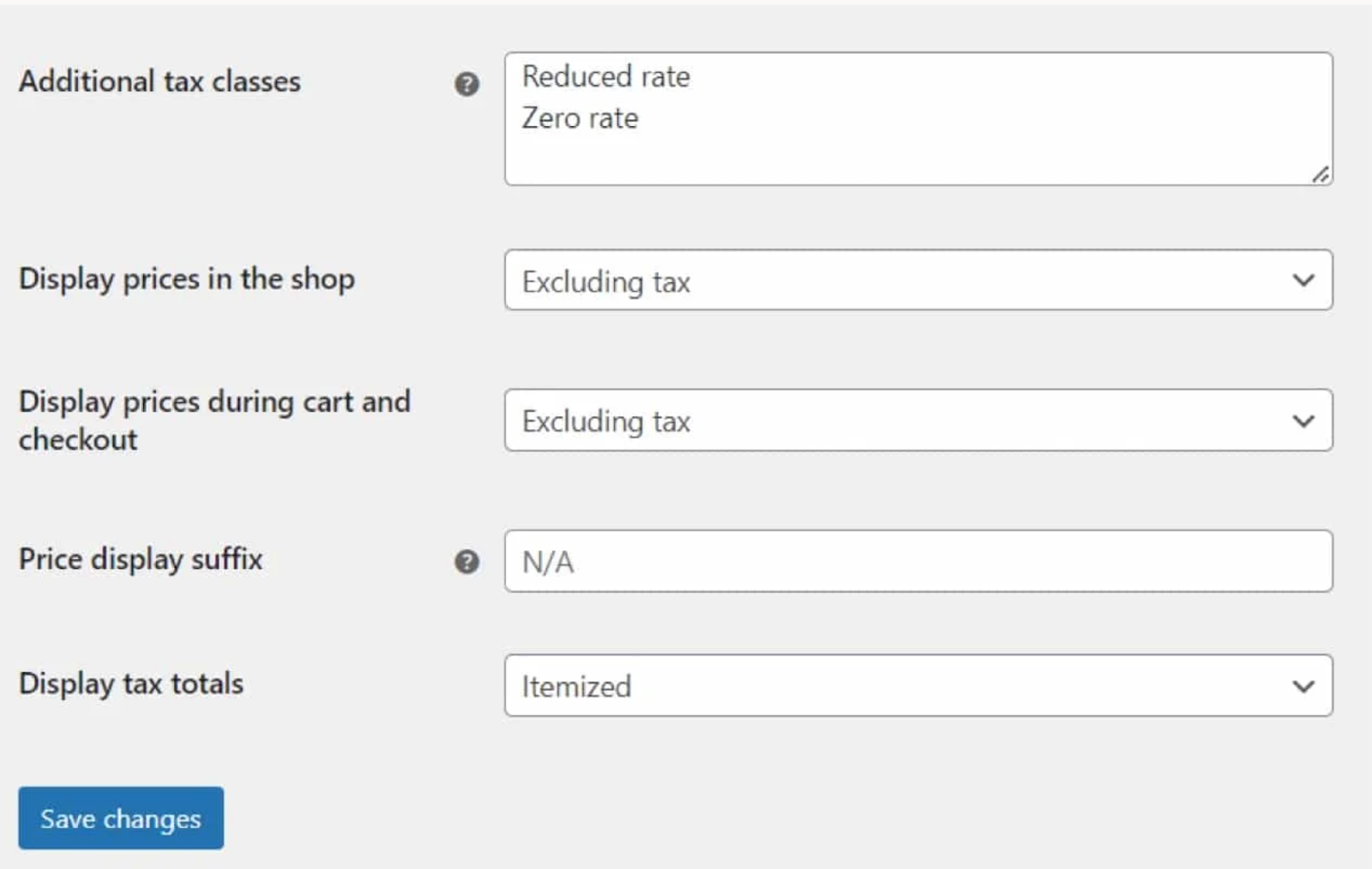
The standard rate applies to most products. A reduced rate is a lower rate charged on certain items, such as energy-saving materials. Zero-rated items can include essentials like food. No tax is charged on zero-rated items, but input VAT can be reclaimed in areas that collect VAT.
Within each class, rate tables define which rates apply to which transactions. Each row in the table includes key information like the rate being applied, the country, state, city, and zip code that the rate applies to, and which rate is the priority one to use when multiple rates could apply.
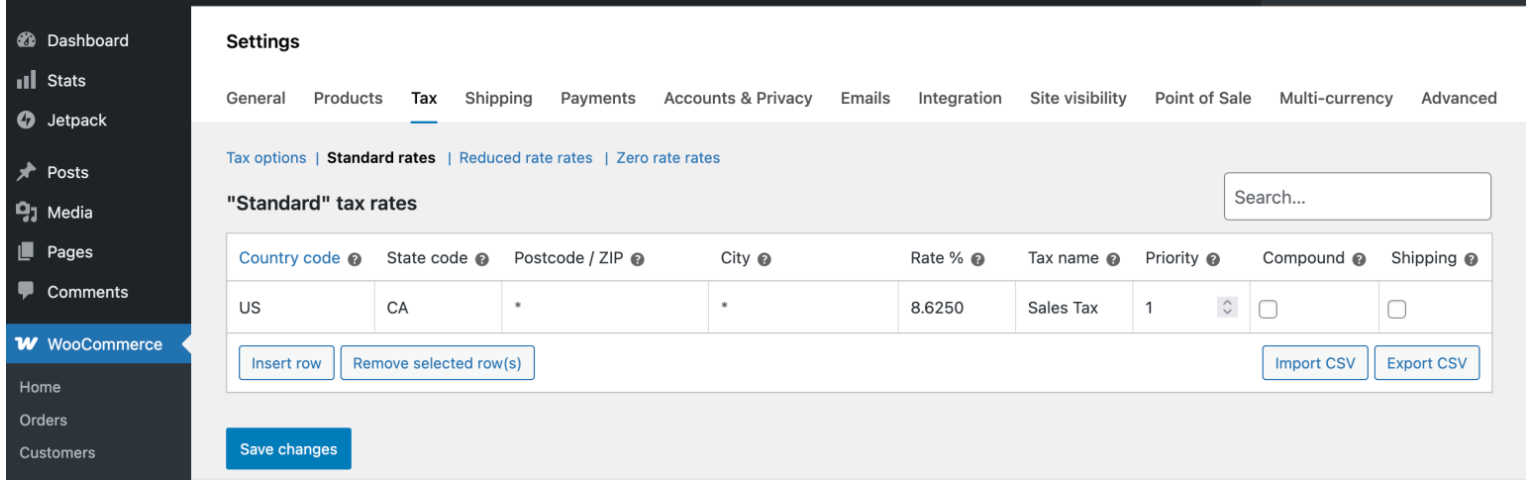
You can manually add new rates by clicking Insert Row, entering all of the required values, and clicking Save. This may be necessary if there are special tax rules applied to products or services you sell in a particular city, state, or zip code where you do business.
If you don't want to manually configure tax rate tables, you can import them from CSV files. This can save time and make charging the correct tax simpler, provided the imported data is accurate.
However, whether you import a CSV file or manually create rows in rate tables, the information is static. It doesn't change unless you change it. Since rates adjust often, you must continually update the data manually, unless you automate the process with a plugin.
WooCommerce offers a free plugin that automates rate calculation for sales made in the United States, Canada, the UK, or the EU. The WooCommerce site allows you to add this automation by clicking Add to store.
The automated plugin connects to WordPress cloud services using a Jetpack/WP.com account. You can enable it by:
After you've enabled the plugin, many configurable sales tax settings are disabled. For example, the plugin automatically sets your store to exclude tax when displaying prices and to calculate tax using the customer's shipping address.
While this plugin eliminates manual configuration of tax rules and rate tables, it doesn't offer features like nexus tracking, registration, or filing and remittance. It can work well for small stores operating in one or two states with minimal compliance obligations, but not for bigger ones.
WooCommerce also requires you to configure whether to charge tax on shipping. You'll set this rule in WooCommerce > Settings > Tax, where you can choose from among four options:
The first option usually makes the most sense, as it applies the same tax rate charged on the item to the tax rate charged on the shipping. So, for example, if an item in the cart is taxed at a reduced rate, the shipping is as well. This avoids manual adjustments of shipping tax rules.
However, defaulting to the first option won't always result in the correct tax rate being applied to shipping charges. Rules for tax on shipping vary, and WooCommerce doesn't automatically account for this, so the wrong rules and rates could apply if you don't manually configure them.
When WooCommerce collects taxes for you, it creates a Taxes Report that provides some basic information, including the following.
The report can be sorted by tax code, rate, total tax, order tax, shipping tax, and number of orders:
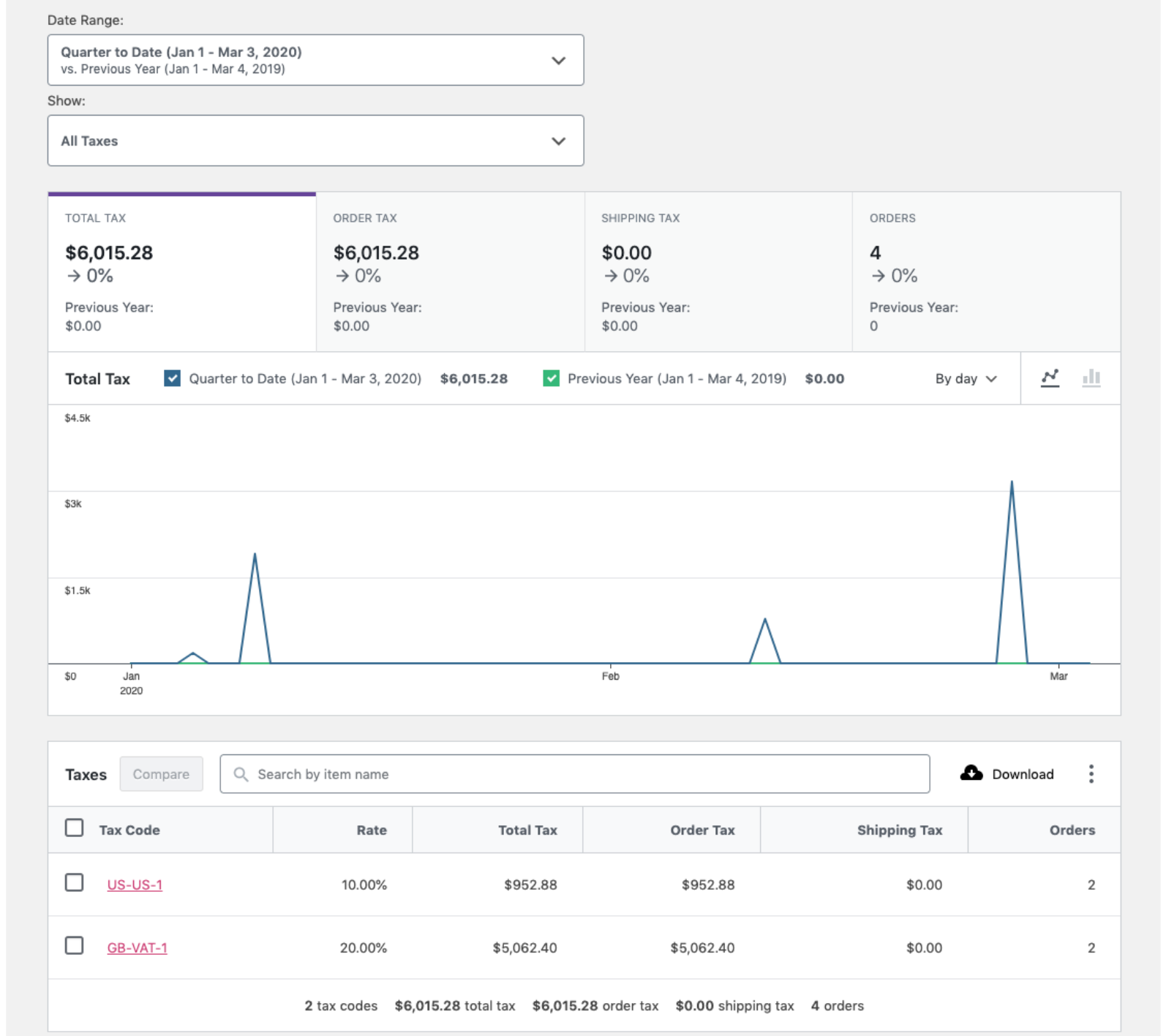
While the report provides insight into sales volume and the number of transactions, it does not provide key details, including which orders crossed the economic nexus threshold, and it does not allow you to sort by state jurisdiction. This makes its utility limited for nexus tracking.
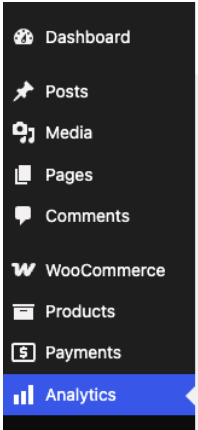
The WooCommerce tax report can be found by navigating to Analytics > Taxes in your WordPress dashboard:
It can be exported via a CSV download.
Here are the details on what you can expect from the WooCommerce sales tax report:
The WooCommerce tax report is missing key details that companies need to comply with registration requirements and to file the appropriate sales tax forms. The report falls short because:
With key data missing, filing required sales tax forms on schedule becomes more time-consuming, difficult, and risky for your business.
Numeral offers automated, end-to-end ecommerce tax compliance software that closes the sales tax compliance gap.
Numeral doesn't just handle a part of your obligations, but instead it takes all of your sales tax tasks off your plate entirely by automating all of the required tasks. Services offered include:
Numeral integrates with WooCommerce, but isn't the same as most WooCommerce tax plugins, many of which create major compliance gaps that increase audit risks.
Numeral handles sales and VAT tax for you from start to finish in over 70 countries and tens of thousands of jurisdictions.
Numeral can take sales, VAT, and GST compliance off your plate because it's not just a plugin. It's a full-service platform with a native-AI engine built for accuracy at scale. While AI tools do the heavy lifting, every filing is also reviewed by a U.S.-based tax expert before submission.
3,000+ businesses trust Numeral to ensure their sales tax obligations are fulfilled, including Eight Sleep, Ridge, and Manus. Your company can get the same comprehensive support and manage sales tax obligations in as little as five minutes per month with help from Numeral.
Check out our case studies to see how we’ve helped companies like yours.
Numeral integrates seamlessly with WooCommerce stores, making life simple for sellers. Here's what to expect when you set up Numeral with your store:
WooCommerce offers multiple tax plugins, but the capabilities vary among the different options.
Some, like the native WooCommerce plugin, simply apply basic rules to collect tax. Others offer full support with all aspects of your compliance obligations.
The table below will help you understand your different options so you can find a solution that's right for you.
With so many WooCommerce sales tax plugins out there, companies need to research their options carefully to select the right partner to automate the sales tax collection process, close compliance gaps, and ensure they are audit-ready.
Numeral offers comprehensive sales-tax support to businesses across multiple industries that use WooCommerce and other common ecommerce platforms. Book a demo with Numeral today to learn what we can do for you.
The trusted solution for U.S. sales tax, VAT, and GST compliance, used by 3,000+ global businesses.