How to File Wisconsin Sales Tax Online

Learn how to file sales tax online in Wisconsin with step-by-step instructions including screenshots.


By
Sam Ross
Sam Ross
Co-founder, Numeral

Prior to Numeral, Sam started numerous e-commerce businesses that have generated over $50M in revenue. However, the headache of filing sales taxes across many states became the basis for starting Numeral. Thousands of filings later, Sam's a pro at ecommerce sales tax.

Reviewed by
Nate Matherson
Nate Matherson
Head of Growth

Nate is the Head of Growth at Numeral. He has founded multiple venture-backed companies and is a two-time Y Combinator Alum. He is based in Charleston, SC.

Published:
March 26, 2026

Step 1: Register for a Seller’s Permit

The first step is to register for a Wisconsin Seller’s Permit, which allows you to collect and remit WI sales tax legally. You must have a Seller’s Permit before charging customers sales tax.

To register:
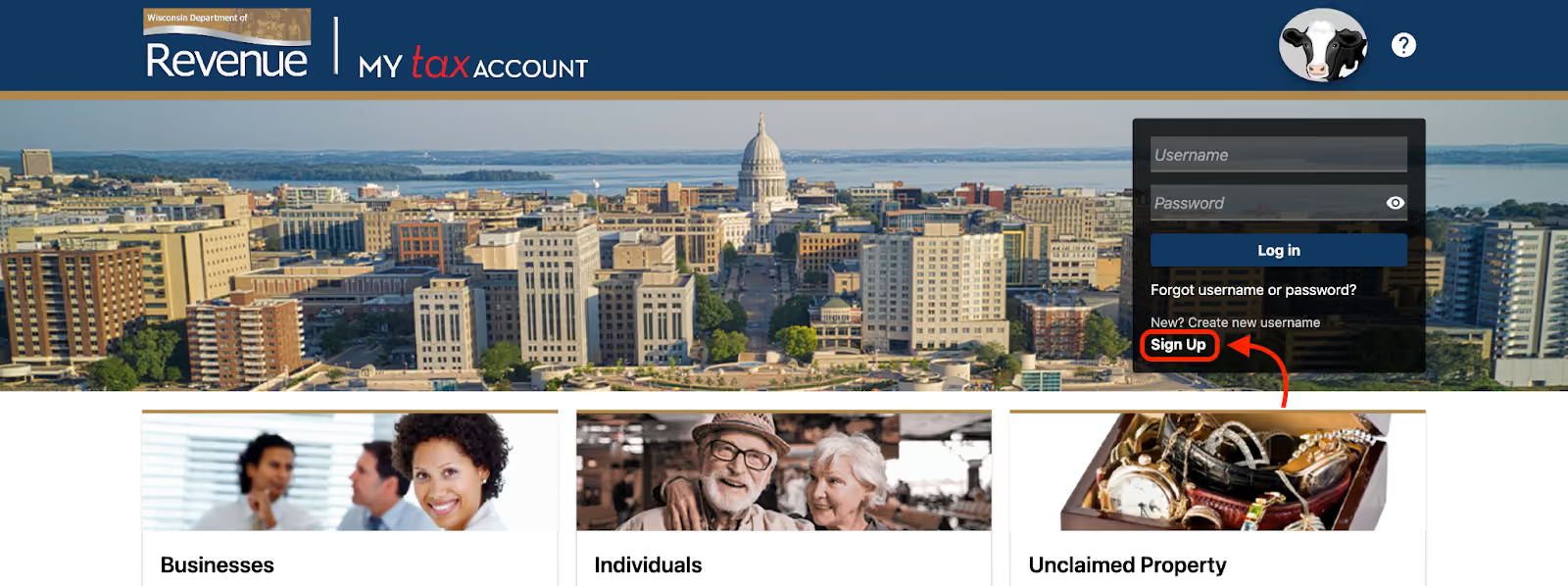
  1. Go to the DOR website’s Seller’s Permit page

  1. Click on the “Register for a permit” button. This will open the online application.
  2. Enter your personal details and business information on the application. Required fields include your name, address, phone number, email, business name, ownership structure, start date, and more.
  1. Describe your business activities. Select the categories that best represent your products/services. This determines your tax obligations.
  2. Submit the completed application. 

Step 2: Log In to Your Seller’s Account

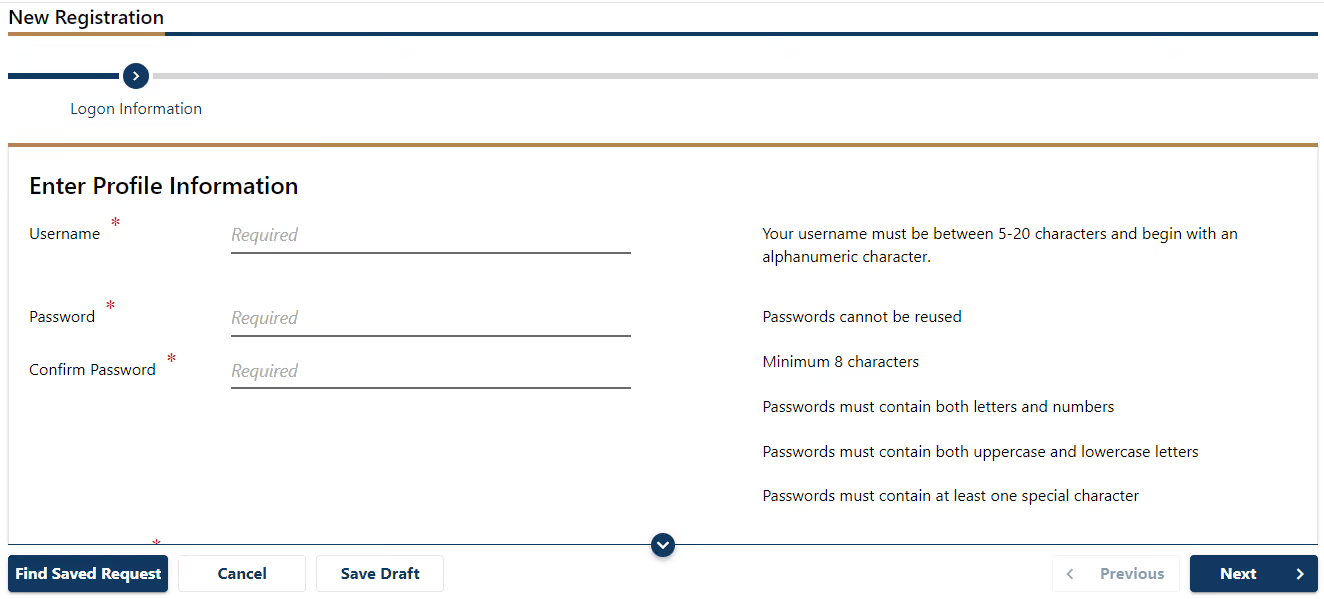
Once registered, you can log into your online DOR seller account to file returns and make payments:
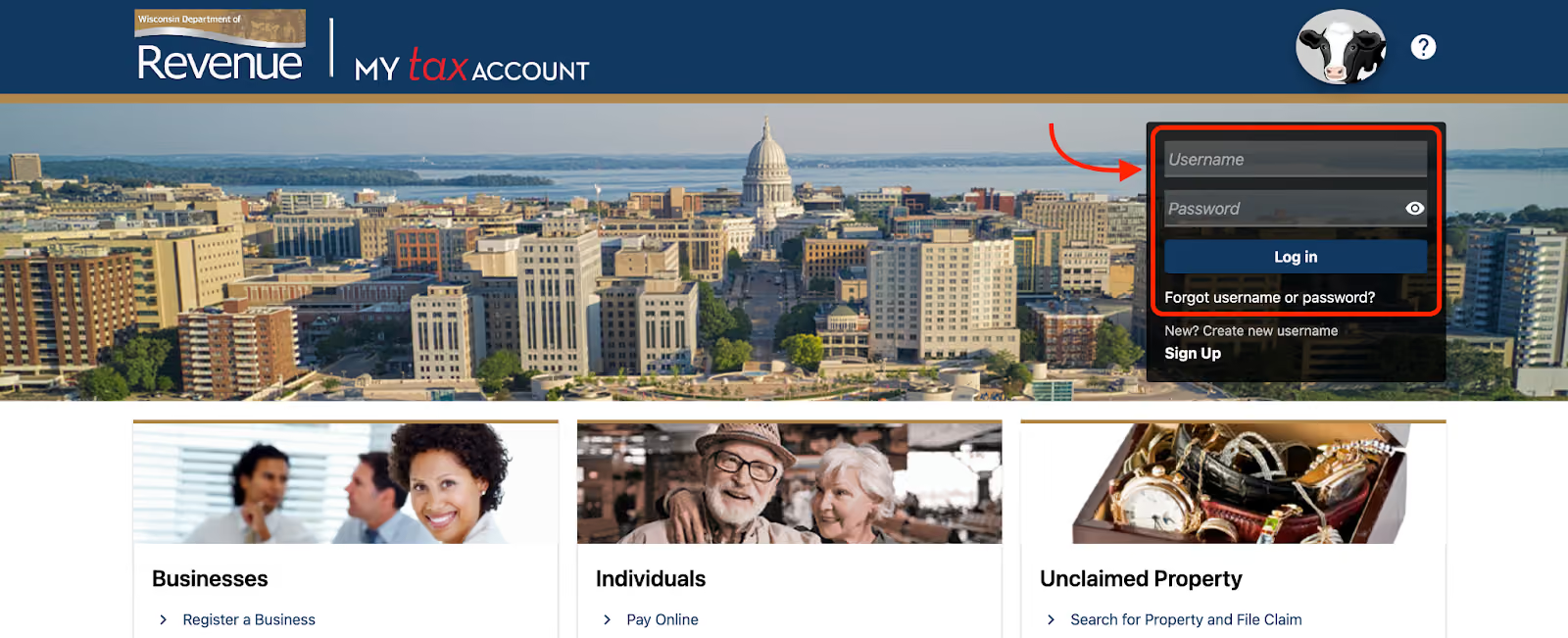
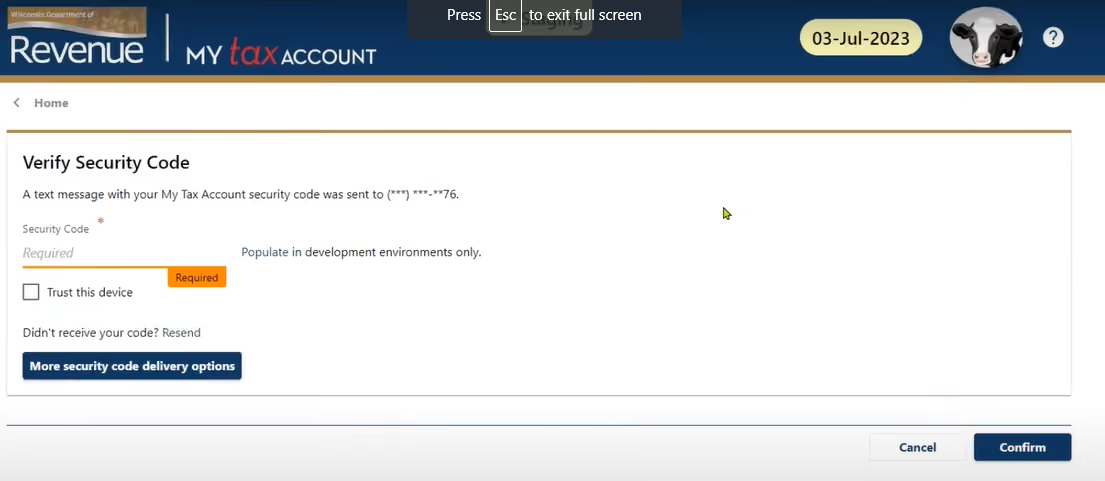
  1. Go to the DOR website and click “Log in” on the top menu bar

  1. Enter your new username and password on the login page
  2. Type the verification code shown into the entry field and click “Confirm.

  1. You will be logged into your seller account dashboard

Step 3: Start Your Sales Tax Return

To begin filing a return:

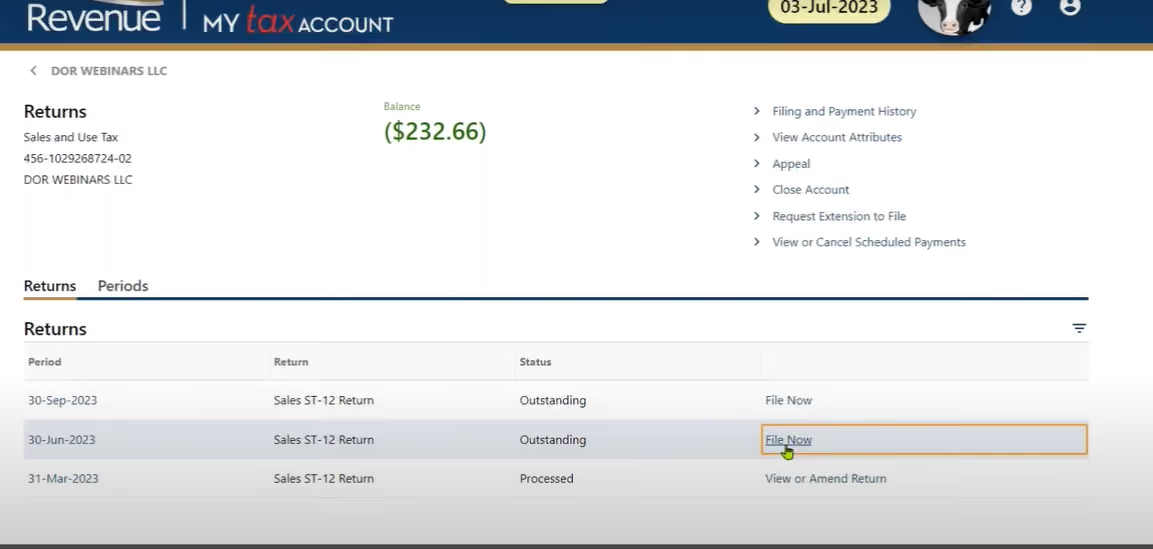
  1. In your seller account, click “File return” below the “Return” tab. This will open the sales tax filing page.

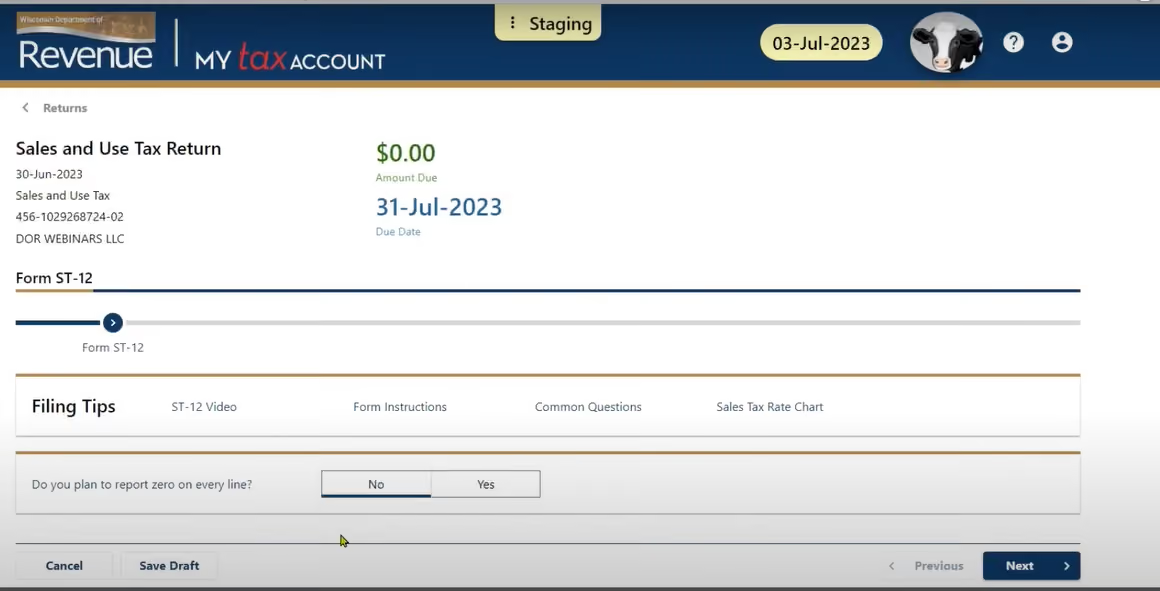
  1. Select whether you will enter a return with tax due or a zero-tax “no business / out of business” return. Choose “Yes” to proceed with entering your tax information.

  1. Specify the tax return period you want to file for, such as monthly, quarterly, or annual filing. Then click “Next”.

You will then enter your gross sales and tax details on the following pages.

Step 4: Enter Your Tax Information

Now, you’ll be taken to the State Sales Tax page, where you need to enter all the sales information including what’s exempt, any returns and allowances you’ve filed, and other information.
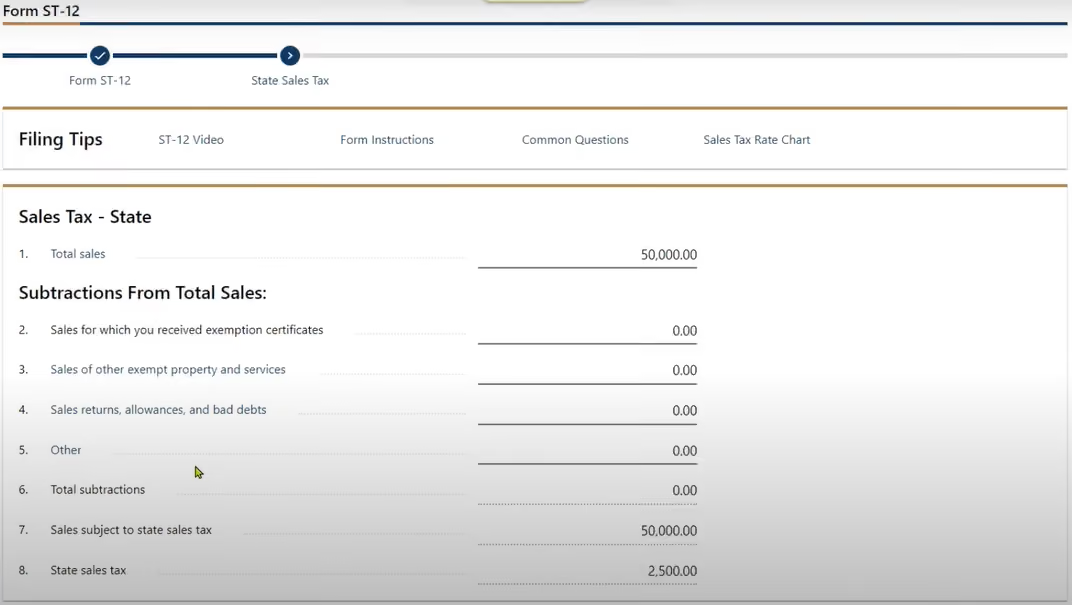
Assuming you have $50,000 in total sales, the form will automatically show what the sales tax will be on that amount. As you will notice, it shows $2,500 right at the bottom. Fill in the rest of the information as required. 

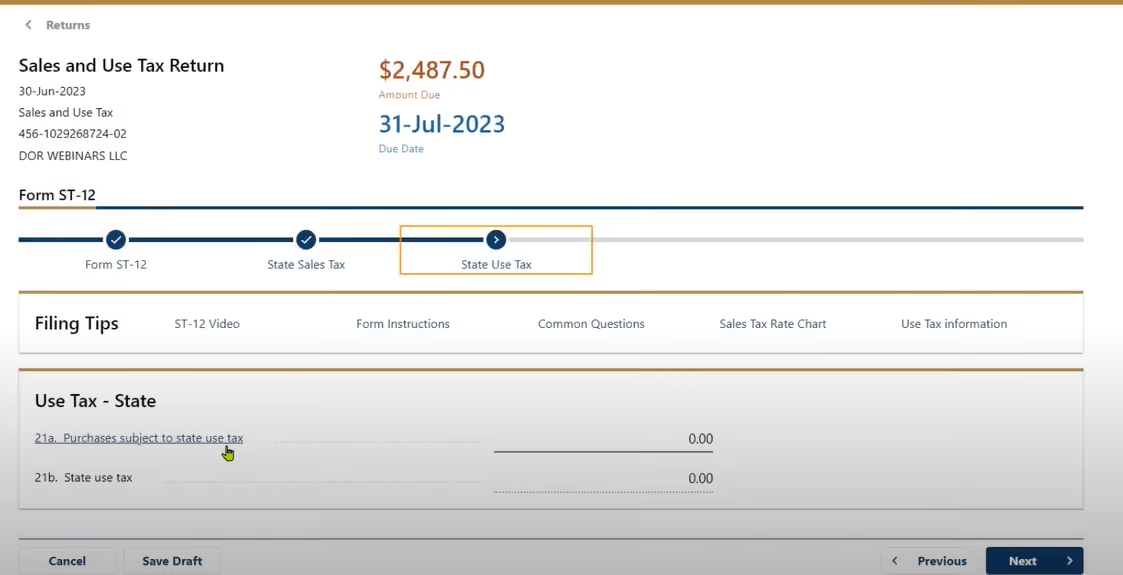
Click Next once you’re ready, and you’ll be taken to the State Use Tax page. Again, click the next button once you’ve filled in the required information for the use tax section. 
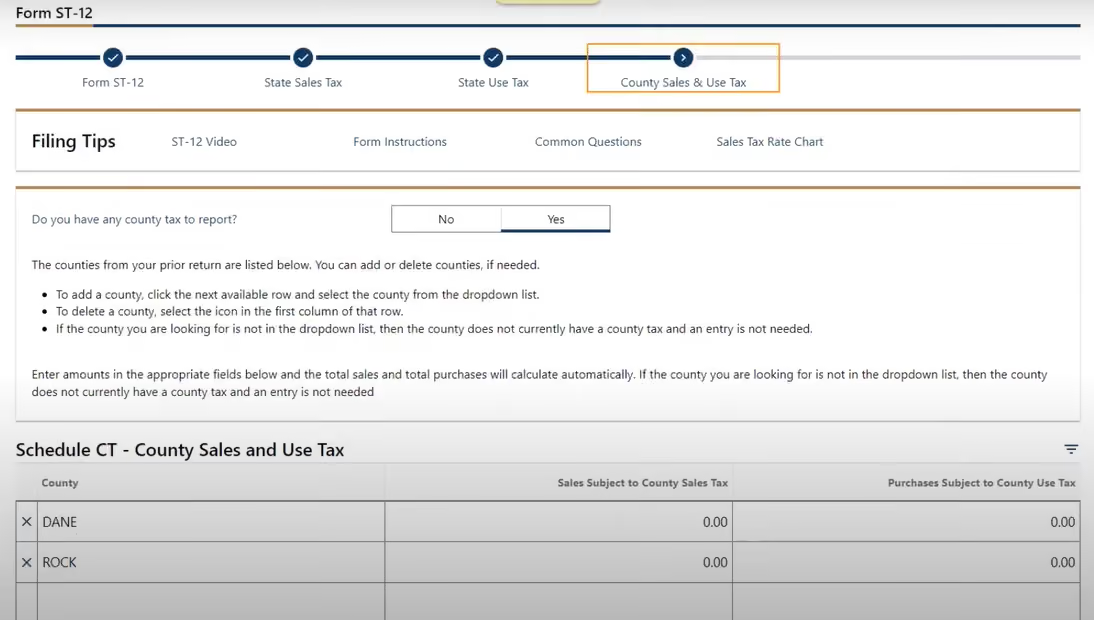
Click Next, and you’ll be taken to the County Sales Tax page. If you make taxable sales in any county, you need to enter those details on this form. 

If you have entered any county-specific information in the previous forms, it will be carried over to this one. However, you can easily add any additional counties and their sales information here. 
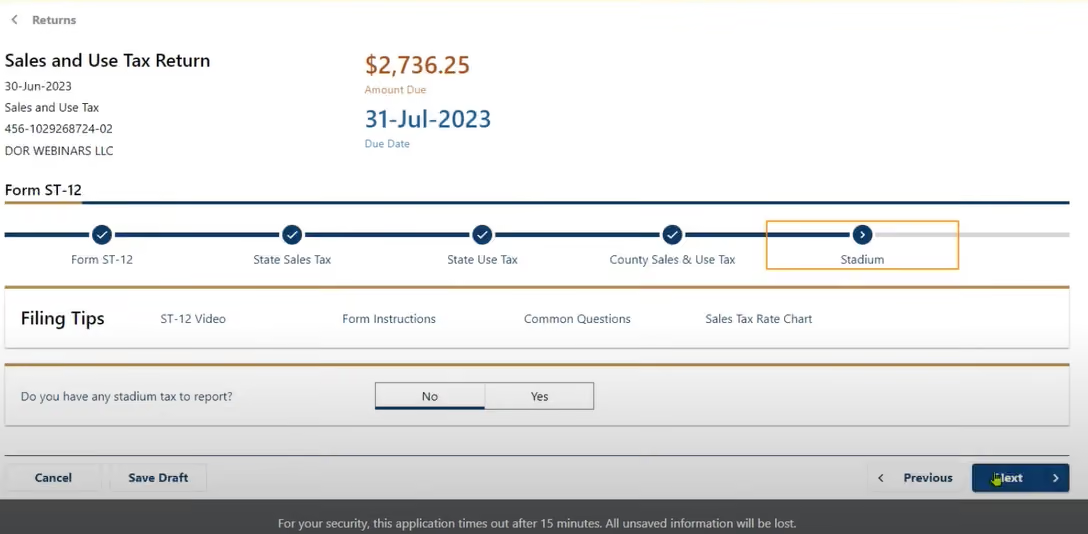
Finally, you reach the Stadium page after clicking Next. If you are located in Brown County or another area with a special stadium tax, you can enter the applicable stadium district sales here. 

This page will also display the amount of tax due and the due date for your payment. 

If this is not applicable to your business, select “No” for “Do you have any stadium tax to report” and proceed to the next page.
Now, moving on to the final page of the form—Summary. You’ll see all the information you’ve entered throughout the pages here. 
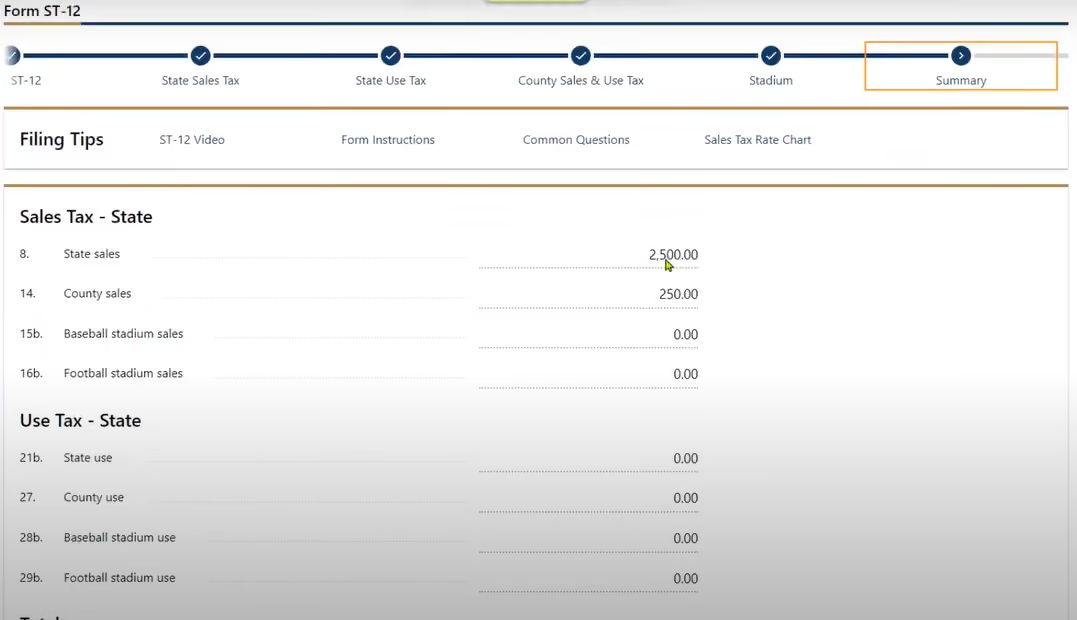
This will display your exact sales tax to be paid, by when, and if you have any returns to be processed.

By the end of the form, you should have filled in the following details along with any business specifics. 

  1. Gross sales: Enter your total gross sales for the tax period here. These are your total sales before deducting any returns or exemptions.
  2. Taxable sales: Specify your total taxable sales for the period, excluding any non-taxed transactions. The site will apply the 5% state tax rate to this amount.
  3. Purchases subject to use tax: Report any out-of-state purchases made that were not charged Wisconsin sales tax at the time of purchase. Use tax has the same rate as sales tax and accounts for items bought tax-free from other states.
  4. County sales: If you made sales in any Wisconsin counties that charge additional local taxes, enter the portion of taxable sales for each county here. Over 60 counties impose local taxes ranging from 0.1% to 1.75%.
  5. Stadium tax: If you are located in Brown County or another area with a special stadium tax, enter any applicable stadium district sales.

Once you’re all set, let’s proceed to submit the tax filing and complete the payment. 

Step 5: Submit Tax Payment

After you’re all ready with the form filling, hit submit, and you’ll see a confirmation popup. 
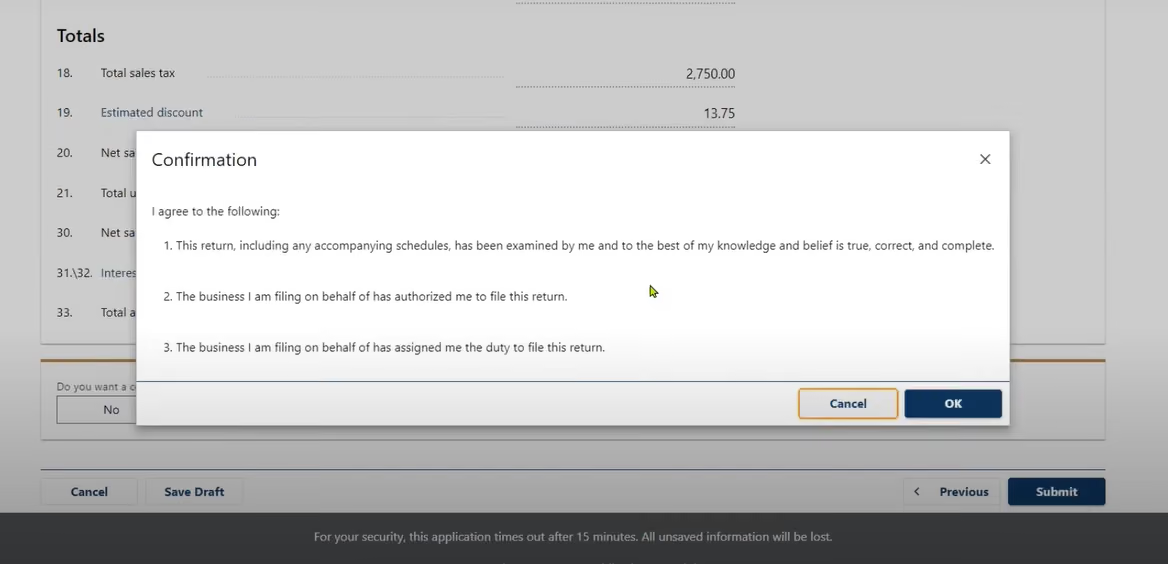
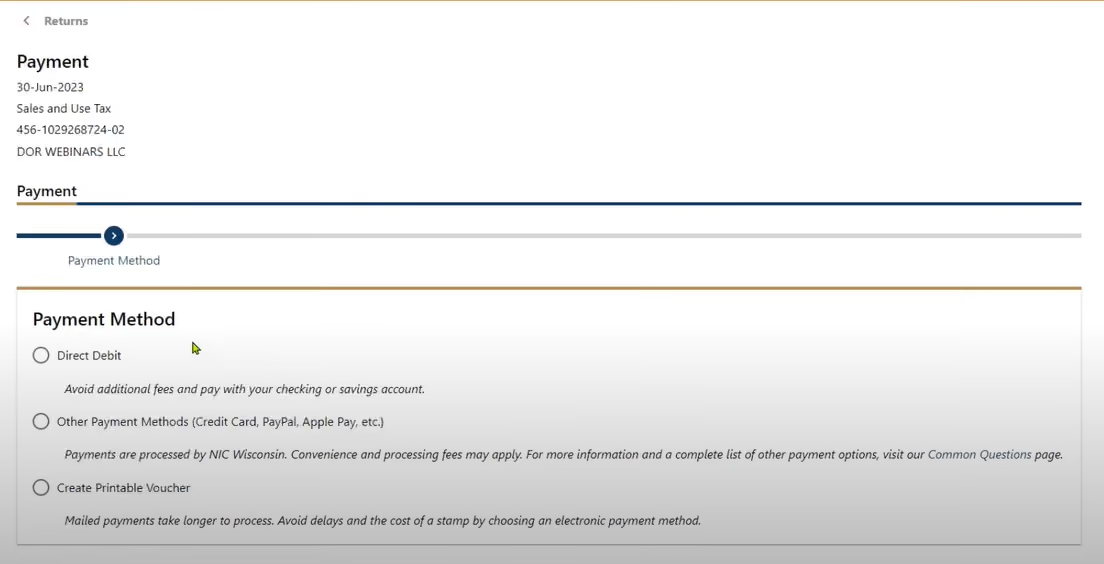
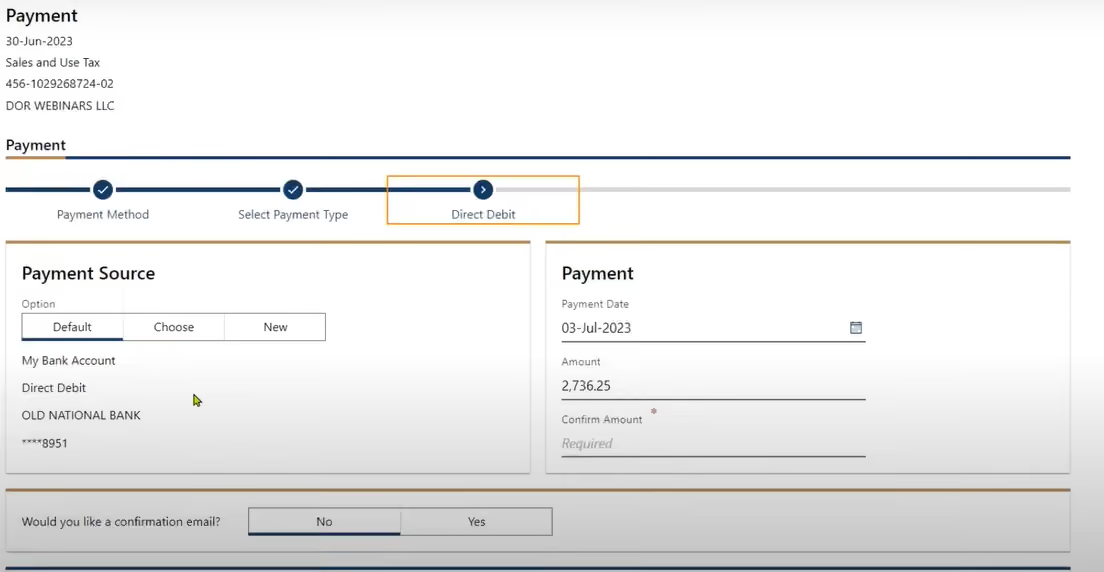
Click OK to be taken to the next page, where you can make the payment. Click Make a Payment.
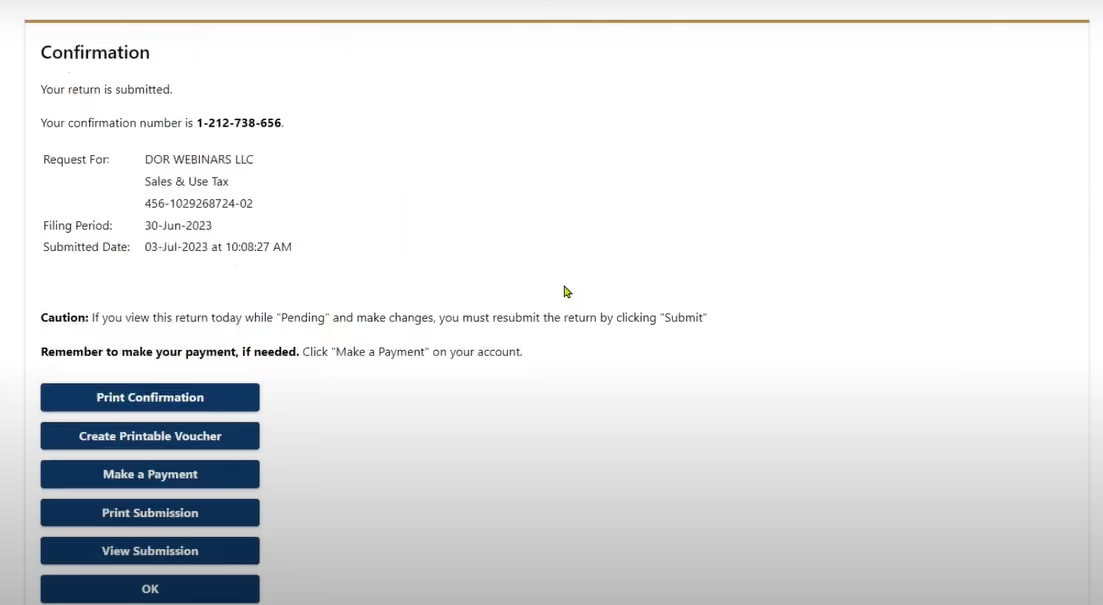
  1. Select your payment method—you can pay the balance due directly from your bank account or by debit/credit card for a small processing fee. Direct bank payments are free.

  1. Enter your payment source information and account details. Carefully check that all payment details are correct as inaccurate information will cause delays.

  1. Submit the payment authorization by 4 pm Central Time to qualify for the timely filing discount.

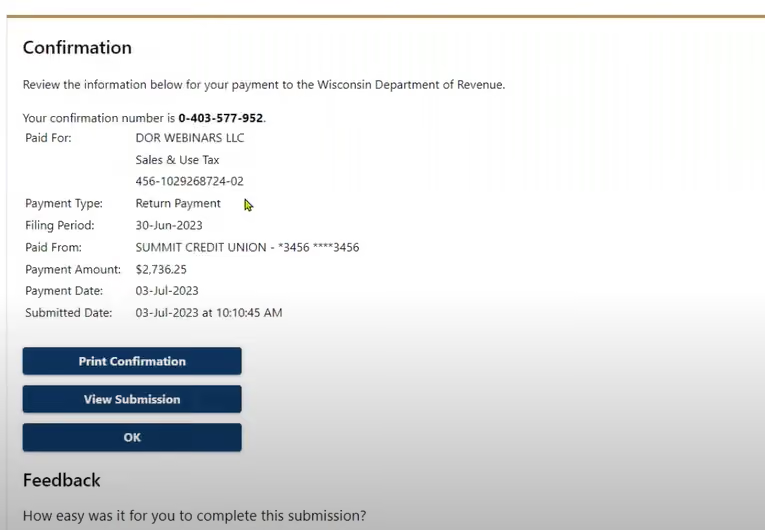
Save the official payment confirmation received after submitting for your records.

Step 6: Finalize Your Filing

You will receive an on-screen verification message after successfully submitting both your return and payment.

  1. Download or print copies of your completed 2026 return and payment confirmation for your files.
  2. Update your records to reflect your tax liability for the year.
  3. Begin collecting the documentation needed to file your next return.

You have now successfully completed your Wisconsin sales tax filing for the period!

Wisconsin Sales Tax Rates by Major City

In addition to the 5% statewide sales tax, many local municipalities impose extra sales taxes that retailers must collect and remit. Here are the total sales tax rates for major Wisconsin cities:

City Total Sales Tax Rate
Milwaukee 7.9%
Madison 5.5%
Green Bay 5.5%
Kenosha 5.5%
Appleton 5.5%
Racine 5.5%
Waukesha 5%
Eau Claire 5.5%

Filing Wisconsin Sales Tax FAQs

What goods and services are taxable in Wisconsin?

Wisconsin sales tax applies to most tangible goods, like clothing, computers, furniture, etc. Some services are also taxable, including hotel rooms, food & drink, amusement & recreation, and car rentals. Basic groceries and medical items are usually exempt. Note that SaaS products are not taxable in Wisconsin.

How often do I need to file returns?

Your tax return filing frequency depends on your sales tax due amounts:

  • $1200+ Monthly
  • $300-1200 Quarterly
  • Less than $300 Annually

New sellers receive quarterly filing until assigned a schedule by the DOR.

What are the penalties for late filing or payment?

Missing deadlines can lead to:

  • 5% Late Filing Penalty
  • 12% Delinquent Interest Charge

Penalties and interest increase the longer accounts remain outstanding.

Do I owe sales tax on online sales to Wisconsin buyers?

Retailers with a significant economic presence in Wisconsin must collect local sales tax on online orders from Wisconsin buyers, even without a physical store. Use tax thresholds to determine online seller obligations.

Let Numeral automate multi-state sales tax compliance

Legacy sales tax management processes burden companies by requiring them to handle the filing and compliance responsibilities.

Numeral provides the next evolution in sales tax compliance. We combine software with human expertise to administer, calculate, report, and remit sales tax seamlessly across all states—accurately and on time.

Some of the benefits of using Numeral:

  • Automatic registrations and ID management for any new nexus
  • Precise geo-located rate calculations tailored to the delivery address
  • Tight billing system integration to capture taxability data
  • End-to-end filing, payments, and communications for every jurisdiction
  • Proactive notifications on changing rules, thresholds, and deadlines

Schedule a demo with Numeral to see how you can spend less than 5 minutes a month for your sales tax compliance!

About the author

Sam Ross

Prior to Numeral, Sam started numerous e-commerce businesses that have generated over $50M in revenue. However, the headache of filing sales taxes across many states became the basis for starting Numeral. Thousands of filings later, Sam's a pro at ecommerce sales tax.

View all posts

Let us worry about sales tax.

The fastest, easiest way to stay compliant with US sales tax and global VAT.

No credit card required.