Learn how to file sales tax online in Arizona with step-by-step instructions including screenshots.



Let’s now look at the steps to file and pay sales tax or TPT in Arizona.
Begin by navigating to the AZTaxes.gov website and logging in to your account.
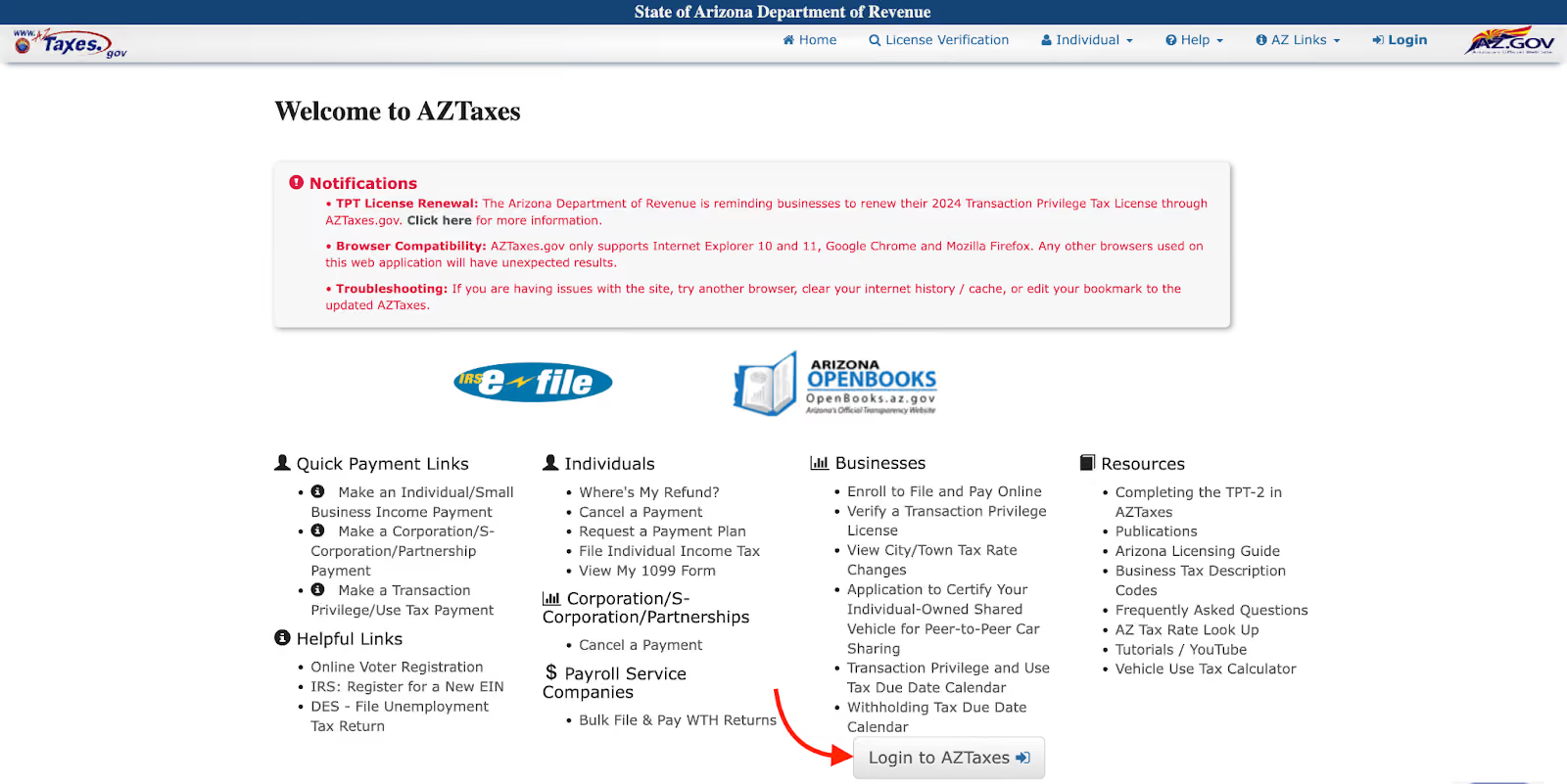
You need to keep track of your login credentials, as the system requires you to update or change your password regularly.
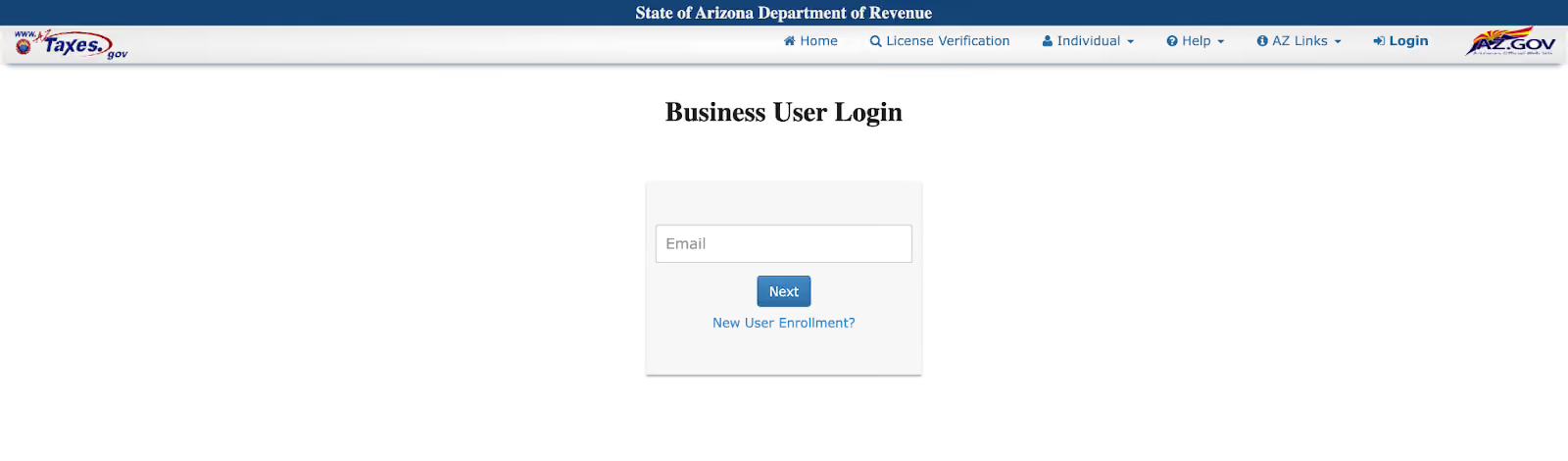
Consider using a password manager or securely storing your login information to ensure you can access your account when needed.
Once you've logged in, you'll be directed to your business dashboard. Locate your business name and click on the "View" button on the right-hand side.
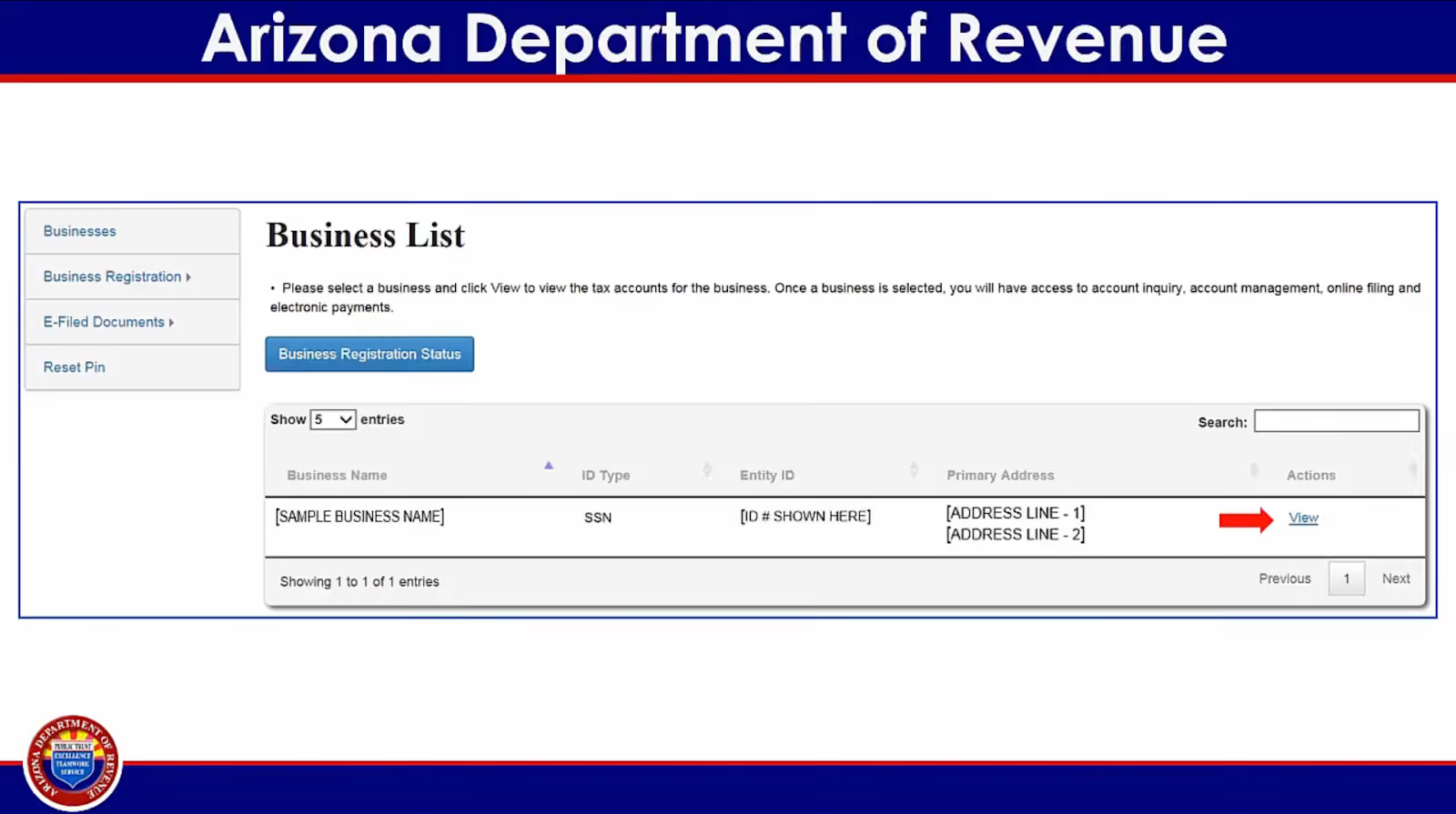
This will display your business location(s). Most ecommerce businesses operate from a single location, typically their home city, which serves as their headquarters.
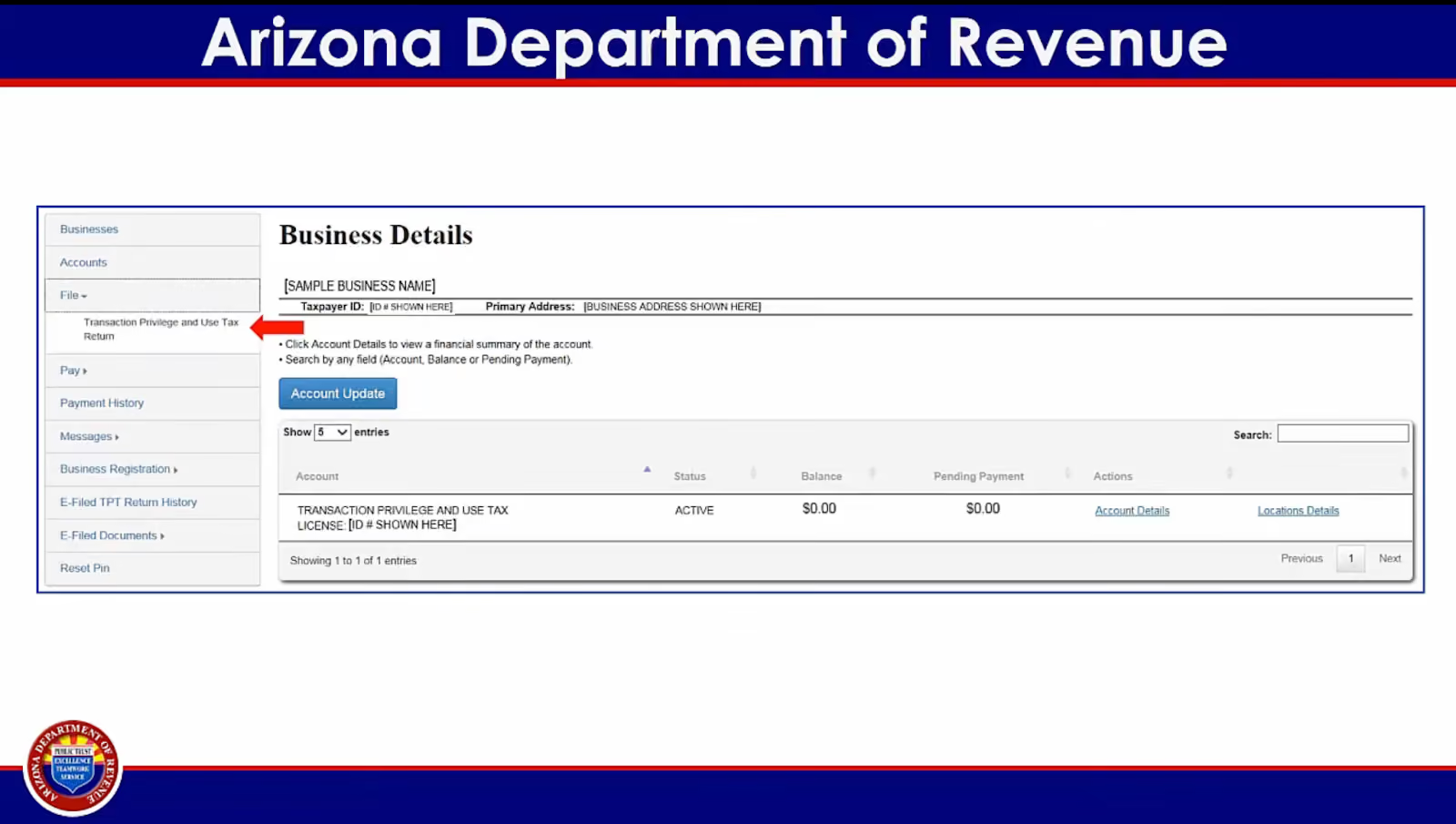
On the left-hand side of the screen, click on File > Transaction Privilege and Use Tax Return.
Use the dropdown menus to choose your license, the year, and the month or quarter for which you are filing.
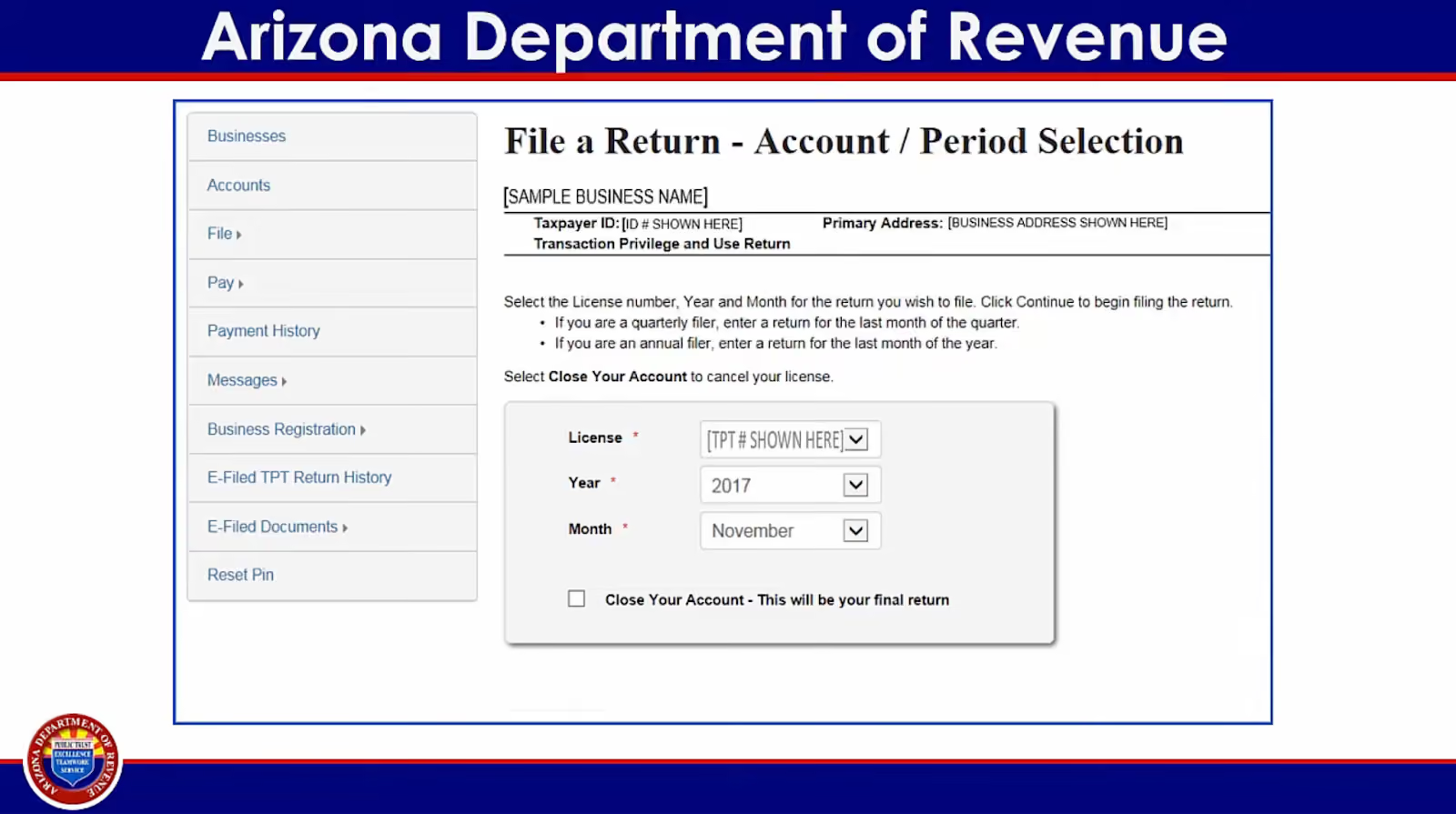
If you're filing monthly, select the appropriate month; if you're filing quarterly, select the corresponding quarter.
There are three checkboxes below the dropdown menus:
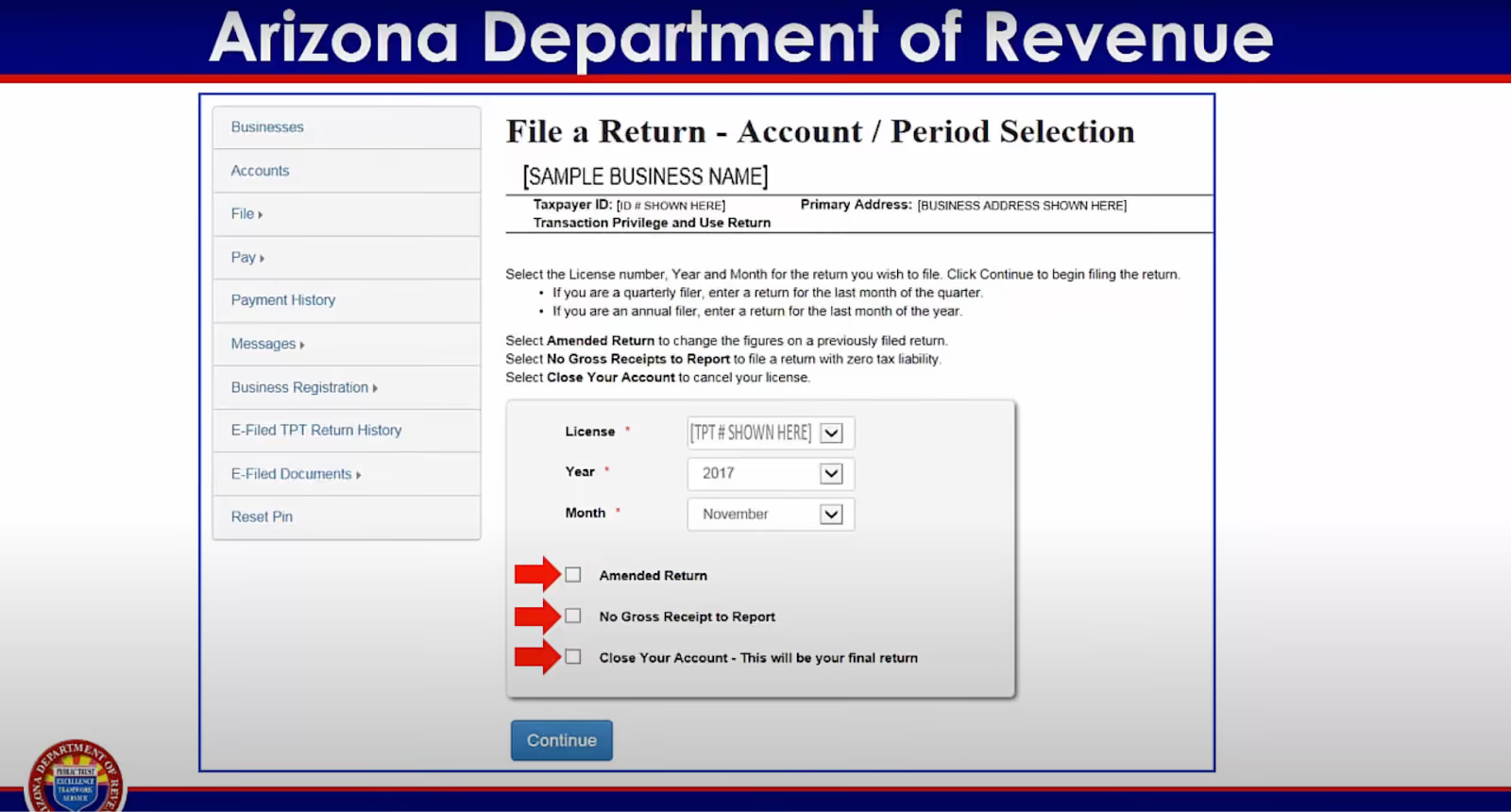
In most cases, you won't need to check any of these boxes. Click on "Continue" to proceed.
The next screen will display your business location details. Most ecommerce businesses will have a single location listed.
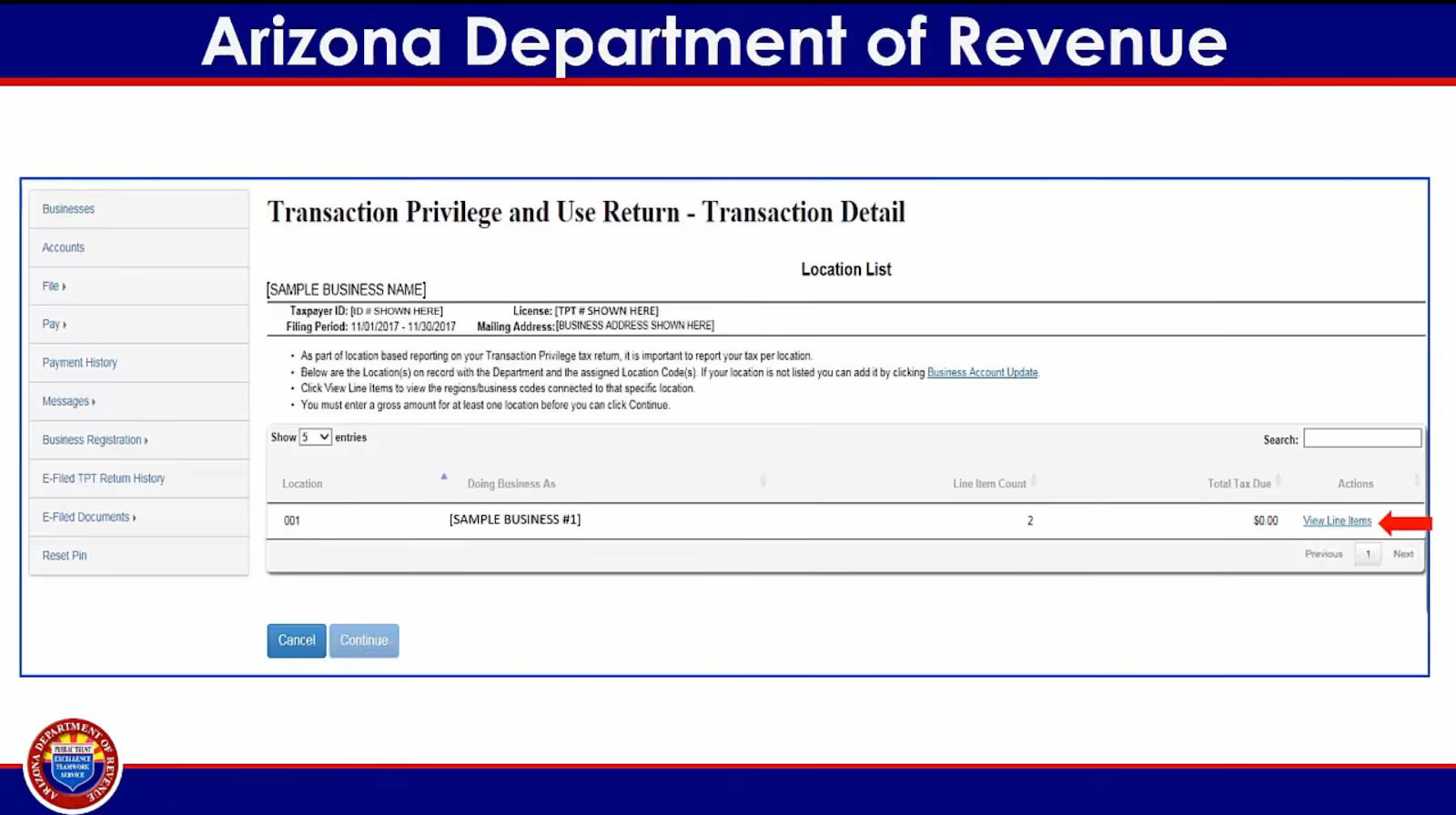
Review the information and then click on "View Line Items" on the right-hand side of the screen.
You'll now see two line items, one for the county and one for the city where your business is located. Under the "Actions" column on the far right, click on "Edit" for each line item.
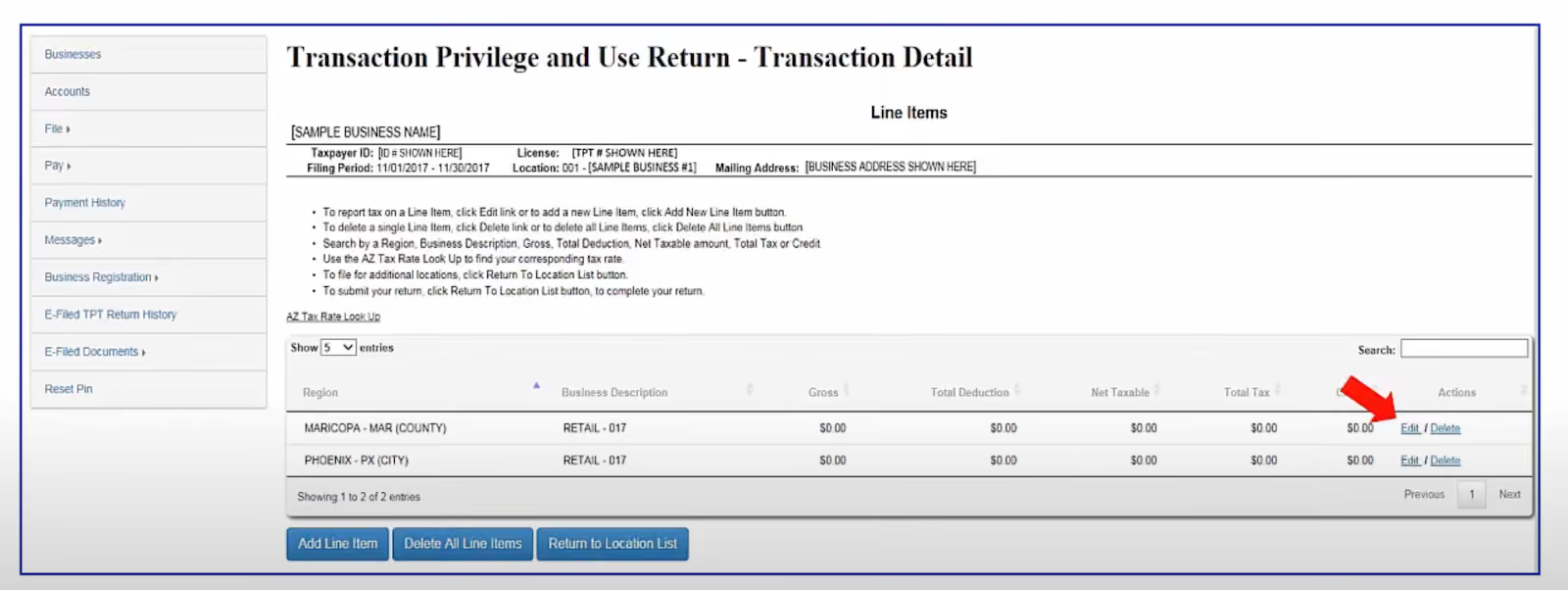
This is where you'll enter your gross income. Gross income refers to the total amount you collected before taxes, expenses, and payroll (if applicable). To determine your gross income, refer to your bookkeeping system or spreadsheet where you track your income and expenses.
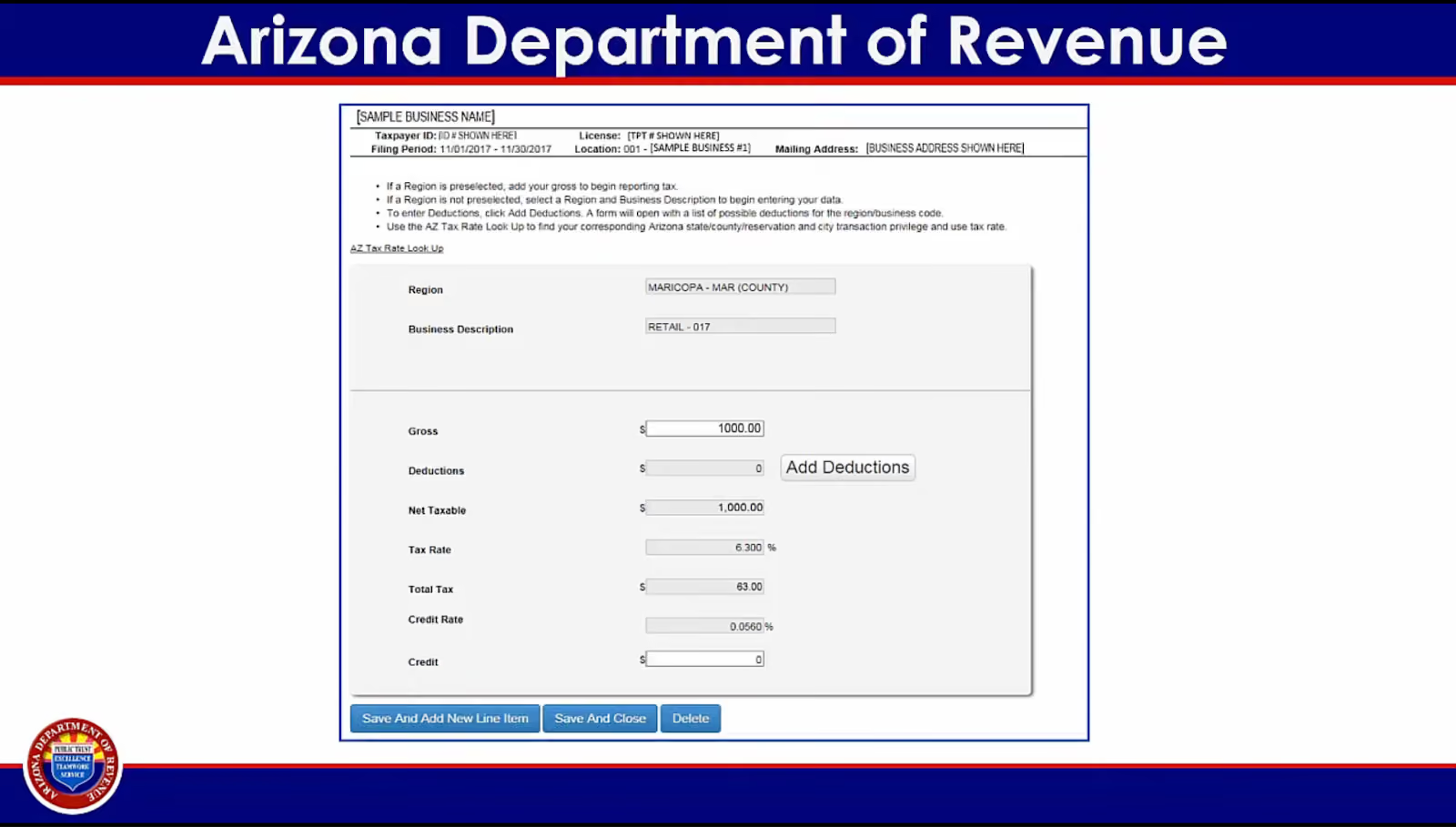
Enter your gross income in the designated field and hit "Enter." The system will automatically populate the taxable amount and calculate the total tax due for your city and county based on their respective tax rates.
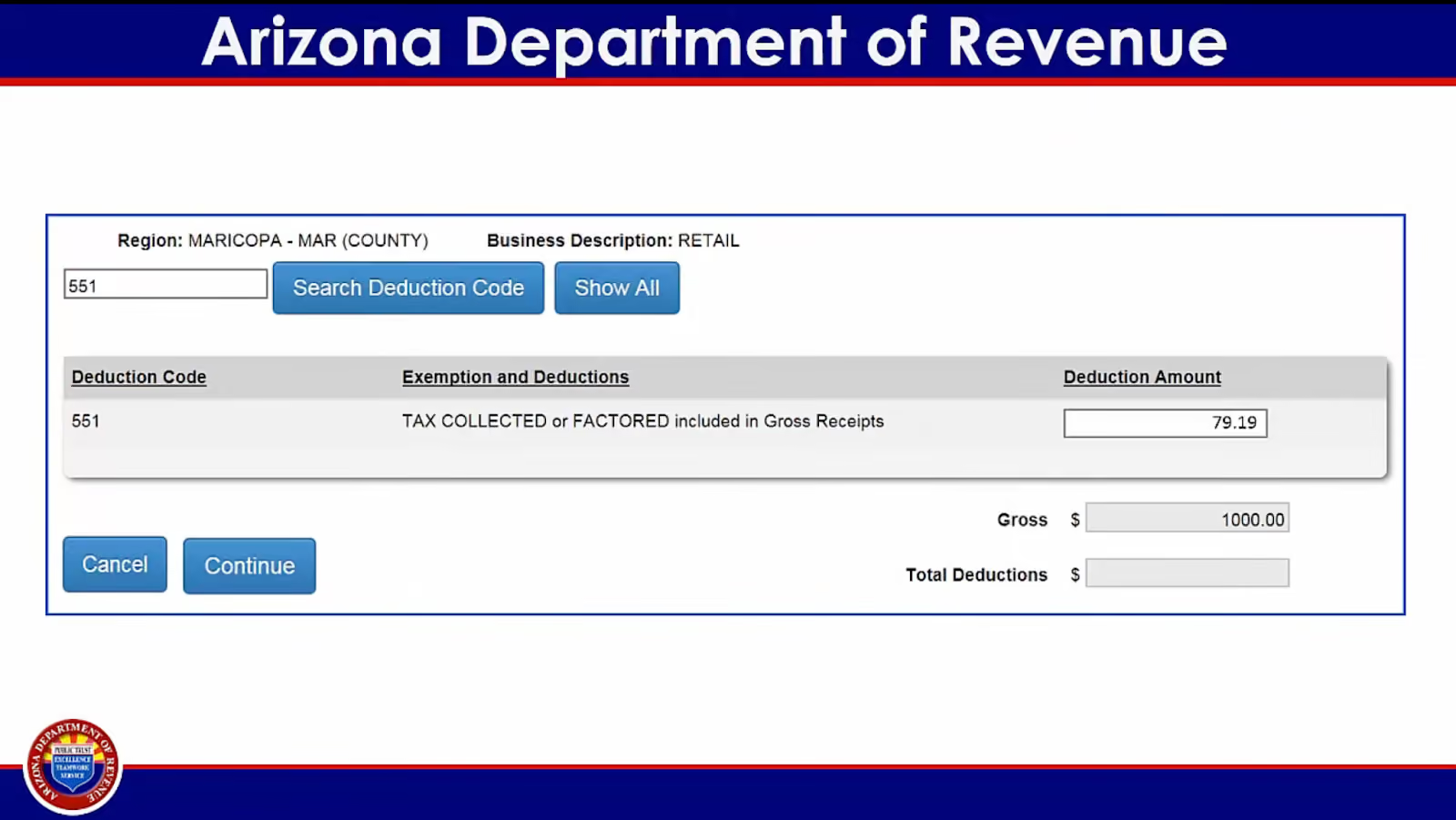
If you have any deductions, you can enter them by clicking on the “Add deductions” button, but most business transactions are not deductible. Consult with a CPA or certified bookkeeper if you have questions about deductions.
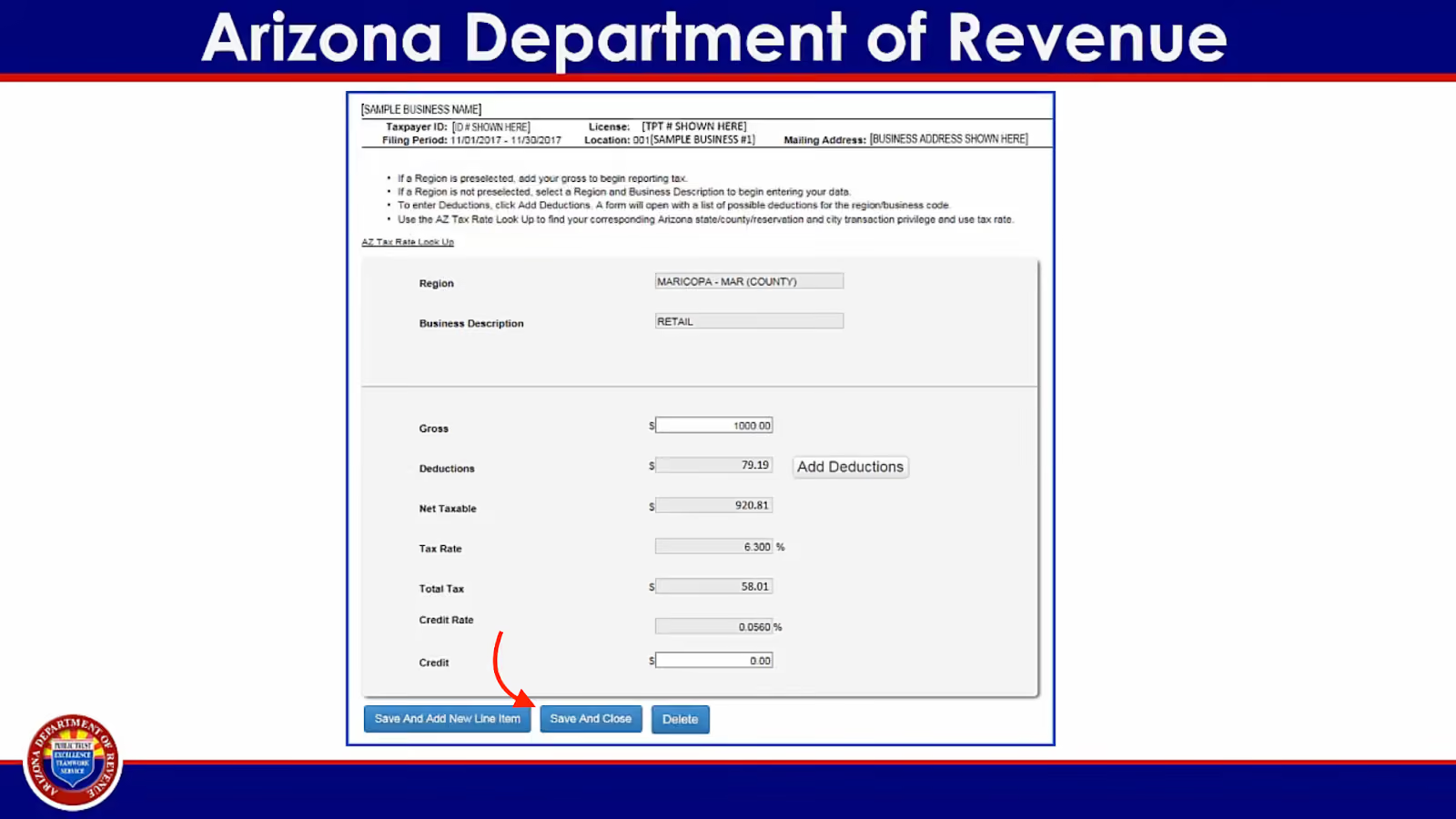
Click "Save and Close" for each line item after entering your gross income.
After saving and closing the line items, you'll be directed back to the location list, where you can review the total tax due for your city and county. Verify that these amounts match the tax you collected from your clients during the filing period. If the numbers align, click on "Continue."
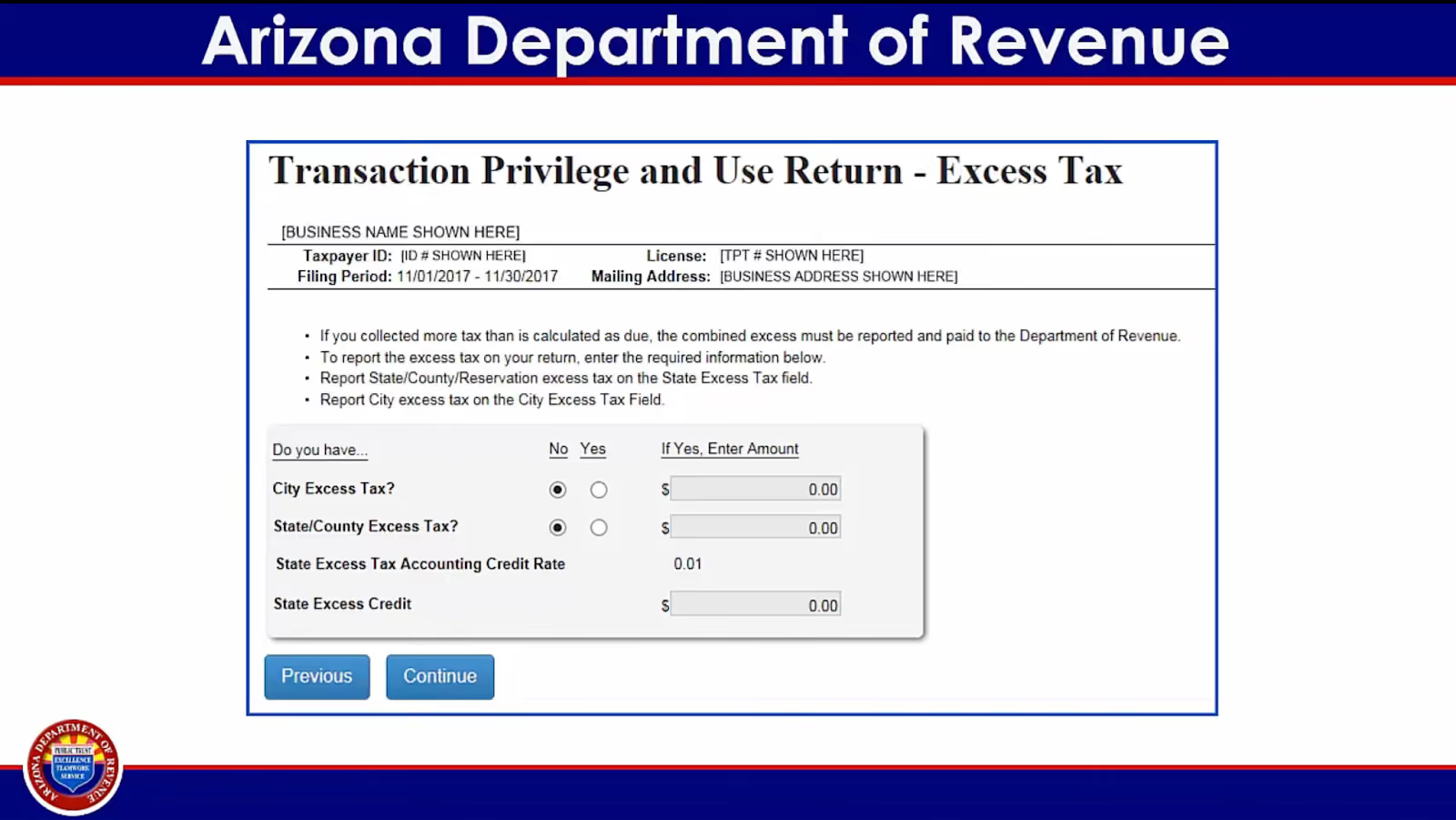
On the next screen, you'll see options for excess tax and excess credit. In most cases, you won't need to make any selections here.
Proceed by entering your e-signature PIN, which you set up when creating your AZTaxes.gov account. Finally, click on "Submit" to complete the filing portion of the process. You'll receive a confirmation number, which you should copy and paste into your bookkeeping system or spreadsheet for future reference.
After submitting your return, click on the "Make a Payment" button. The system will remind you that making a payment is not the same as filing a return, but since you've already filed, you can proceed.
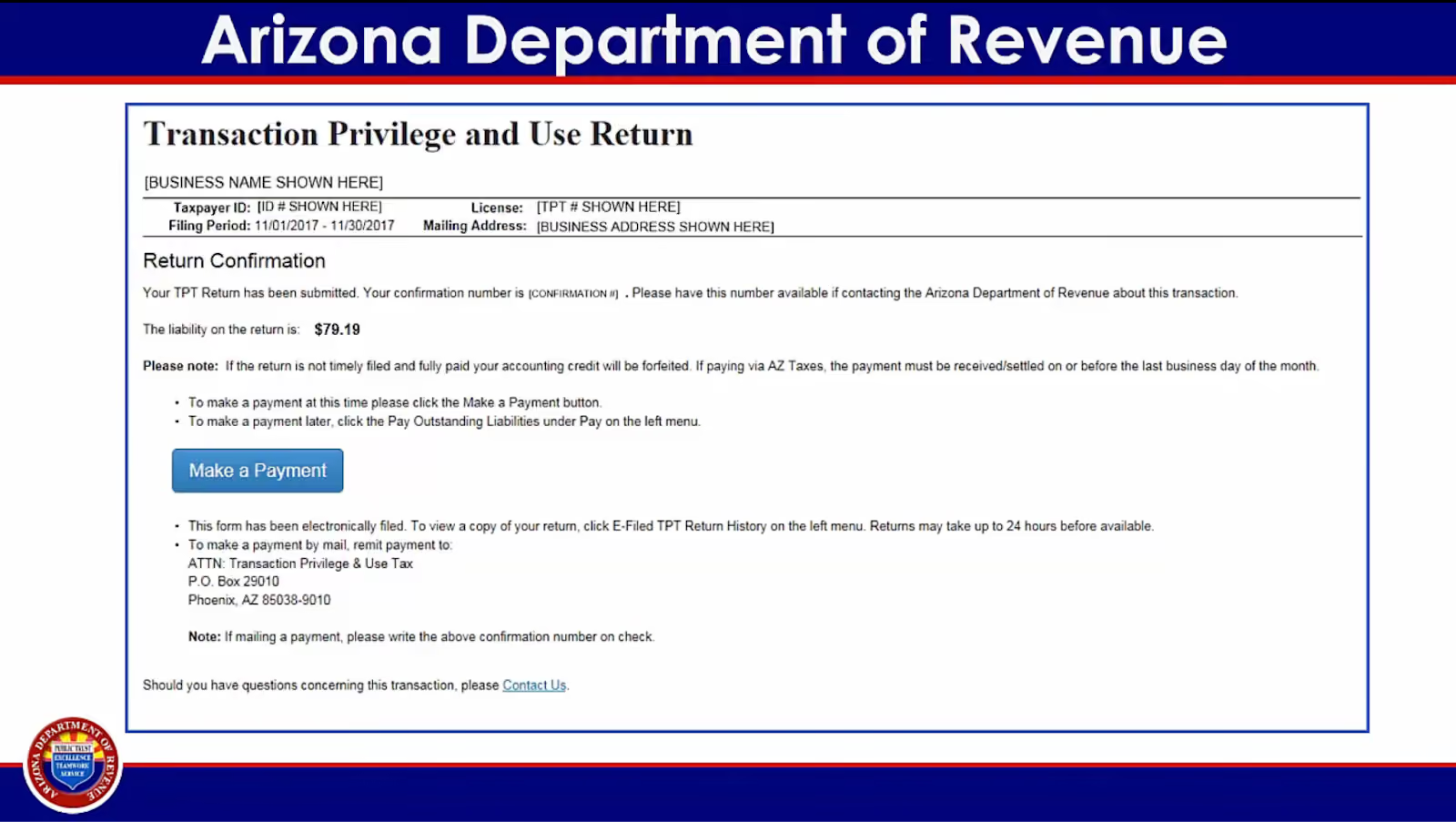
The payment amount should automatically populate based on the total tax due from your return. Choose your payment method: e-check or credit card. Keep in mind that credit card payments incur an additional percentage fee.
Select a settlement date for the payment, which must be the next business day or later. Check the box to confirm that you understand and agree to the terms, and then click "Continue."
On the next screen, enter your bank account information, including the routing number and account number. Double-check the payment amount and settlement date, then click "Continue."
Review the payment details on the confirmation screen and, if everything is correct, click "Process Payment." You'll receive another confirmation number, which you should copy and paste into your bookkeeping system or spreadsheet, along with the payment settlement date.
The local sales tax rates vary by city and county. You can look up the current sales tax rates in each city and county in Arizona. Here’s a snippet of some major cities:
What if I didn't have any income during the filing period?
Even if you didn't have any income during the filing period, you still need to file a return indicating zero gross receipts. This is known as a "zero return" and helps maintain your compliance with state tax requirements.
Can I file and pay my TPT annually?
In Arizona, TPT returns must be filed monthly or quarterly, depending on your business's average monthly tax liability. Annual filing is not an option for most businesses.
What happens if I file or pay my TPT late?
Filing or paying your TPT late may result in penalties and interest charges. To avoid these additional costs, always file and pay your taxes by the due date.
Can I pass the cost of the TPT on to my customers?
Yes, you can pass the cost of the TPT on to your customers by including it in your pricing or adding it as a separate line item on your invoices. However, you must clearly state that the additional charge is a tax and not a part of your base pricing.
Is SaaS taxable in Arizona?
Yes. SaaS revenue in Arizona is taxable, and this tax money should be remitted to the state's tax agency as part of Arizona's transaction privilege tax (TPT).
As an Arizona business, you've got enough on your plate without having to worry about sales tax compliance. That's where Numeral comes in. We've designed our service specifically for businesses like yours, taking the hassle out of:
With Numeral, you can spend less than five minutes a month on sales tax. Our user-friendly dashboard gives you a clear picture of where you stand, and our secure integrations with popular ecommerce and billing platforms keep your data up-to-date. Plus, our virtual mailbox service ensures you never miss an important notice from the state.
At Numeral, we believe in keeping things simple and flexible with:
Don't let sales tax compliance stand in the way of growing your business.
Book a demo with Numeral today and see how easy it can be to say goodbye to sales tax stress and hello to more time and energy for what matters most—your customers and your success.
The trusted solution for U.S. sales tax, VAT, and GST compliance, used by 3,500+ global businesses.