

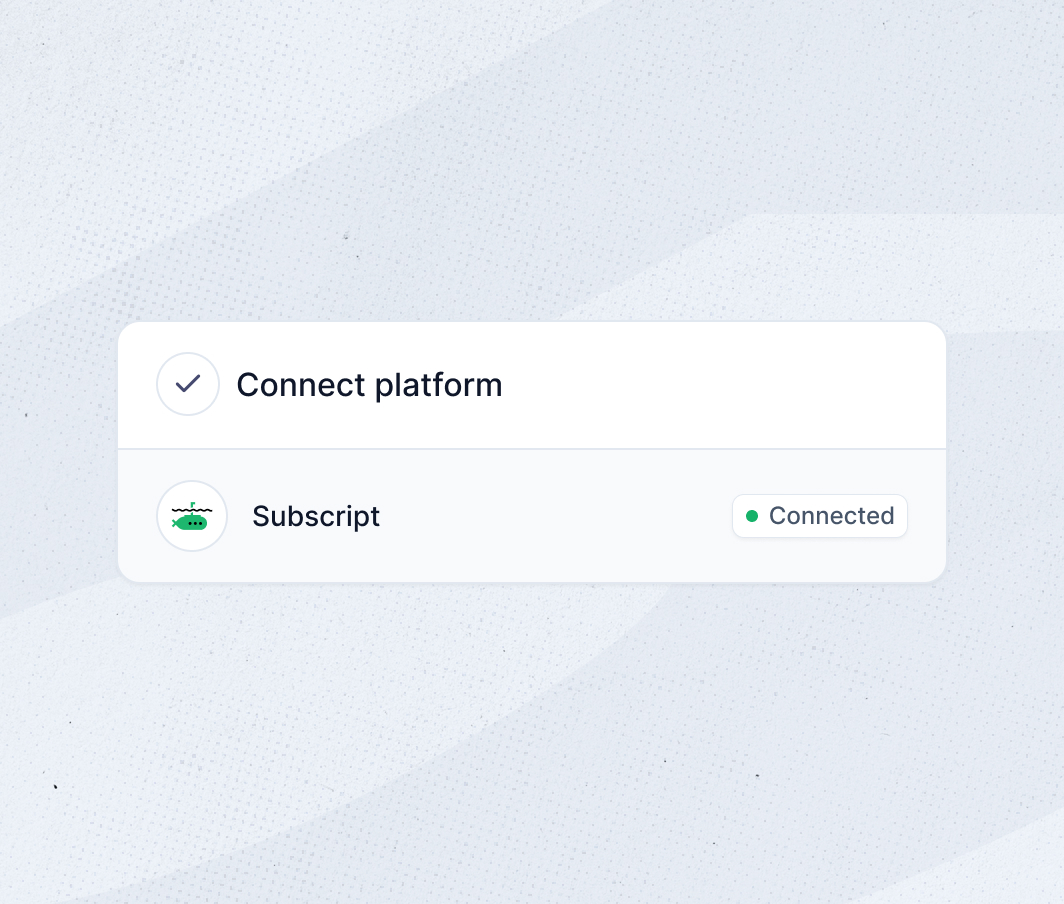
Sales tax, built into your Subscript invoicing flow.
Subscript keeps your B2B SaaS billing running without spreadsheets. Numeral does the same for sales tax. Together, with QuickBooks Online, tax is applied to each invoice and your returns are filed for you.
Sales tax for software can be tricky, since rules differ by state and by what you sell. Numeral works out the right rate, applies it to the invoice, and handles registrations and filings, so your finance team isn’t researching tax rules or chasing deadlines.
The result: accurate invoices, clean books, and one less thing on the month-end checklist.
How it works
- Create the invoice in Subscript. It syncs to QuickBooks Online as usual.
- Numeral calculates tax. The correct rate is applied within QuickBooks.
- The invoice updates. It reflects the right tax through the QuickBooks sync.
- Numeral files for you. We pull sales and tax data from QuickBooks to handle registrations and filings.
Why finance teams choose Numeral with Subscript
- No new workflow. Keep billing in Subscript and your books in QuickBooks. Tax happens in the background.
- Done for you, not just calculated. Numeral handles registrations, filings, and remittance, backed by the Numeral guarantee.
- Built for software. Taxability rules for SaaS vary widely. Numeral applies them by product category and location.
- Nexus monitoring. We watch your sales and alert you when you’ve crossed into a new state.
- Guided setup. Your Onboarding Manager helps configure product categories and shows you how to manage them going forward.
Getting started
- Connect QuickBooks Online to Subscript. In Subscript, go to Settings > Integrations and authorize QuickBooks Online. You may need Subscript to enable the QBO sync.
- Connect QuickBooks Online to Numeral. Add a connection from your Numeral dashboard.
- Set up product categories. Your Onboarding Manager will walk you through it.
Good to know
- This integration connects through QuickBooks Online, so you’ll need an active QBO account.
- Product categories set in Subscript or QuickBooks don’t carry over to Numeral. They’re set up directly in your Numeral account.
- View the Subscript integration documentation
Book a call with our team to see how Numeral fits into your Subscript setup.


